The Spill Suppressor effect removes
traces of the key color from an image with a screen that’s already
been keyed out. Typically, the Spill Suppressor is used to remove
key color spills from the edges of an image. Spills are caused by
light reflecting off the screen and onto the subject.

If you’re not satisfied with the results
from using the Spill Suppressor, try applying the Hue/Saturation
effect to a layer after keying, and then decrease the saturation value
to de-emphasize the key color. (See
Hue/Saturation effect.)
This effect works with 8-bpc and 16-bpc color.
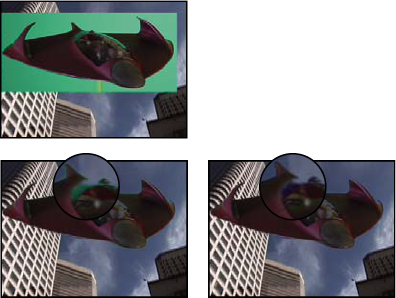
Original greenscreen (top left) leaves green glow when keyed
out (bottom left). Spill Suppressor removes glow (bottom right).
-
Select the layer and choose Effect >
Keying > Spill Suppressor.
- Choose the color you want to suppress in one of the following
ways:
-
If you already keyed out the color with
a key in the Effect Controls panel, click the Color To Suppress
eyedropper, and then click the screen color in the key’s Key Color
swatch.
-
In Spill Suppressor, click the Key Color swatch
and choose a color from the color wheel.
Note: To use the eyedropper in the Layer panel, choose Spill
Suppressor from the View menu in the Layer panel.
- From the Color Accuracy menu, choose Faster to suppress
blue, green, or red. Choose Better to suppress other colors, because
After Effects may need to analyze the colors more carefully to produce
accurate transparency. The Better option may increase rendering
time.
- Drag the Suppression slider until the color is adequately
suppressed.


 Use the Spill Suppressor effect