

Path Text effect
The Path Text effect lets you animate text along a path. You can define a path as a straight line, a circle of any diameter, or a Bezier curve. You can also import a path created in another application, such as Adobe Photoshop or Adobe Illustrator. The Path Text effect can work with nonsquare pixels, adjusting both character shape and path shape accordingly.
Use text layers for greater control over text formatting and text animation. (See Text.)
This effect works with 8-bpc color.
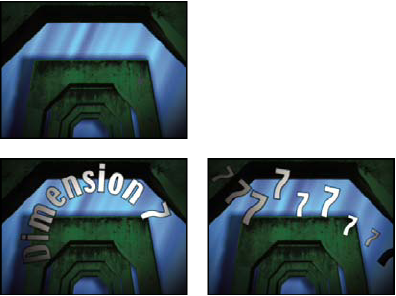
When changing the shape of a Bezier path over time, make sure to create initial keyframes for all four path control points; moving a control point without an initial keyframe doesn’t move it over time. You may find it easier to animate a path by modifying the motion paths of individual control points in the Layer panel.
If you want to move a Bezier path across the composition, and you don’t want to change its shape, animate the layer rather than the path. If you want to stretch, shrink, or wag one side of the Bezier path while keeping the other half in the same position, move a tangent-vertex pair together. To do so, create keyframes for both by dragging the outer circle of the appropriate vertex.
You can apply motion blur to motion that you create with the Path Text effect. Blurring occurs on each character. Like motion blur for layers, blurring for characters is more visible when movement is quick. For example, blurring is quite pronounced when you choose negative jitter values, which produce jumpy motion.
 Path Options controls
- Shape Type
-
Defines the shape of the path. The Path Text effect name
must be selected in the Effect Controls panel to make the path visible
in the Composition panel.
- Bezier
- Shapes text along a Bezier curve, defined by four control points (Vertex 1/Circle Center, Tangent 1/Circle Point, Tangent 2, and Vertex 2). Characters that don’t fit on the path are placed off the end in a straight line.
- Circle
- Shapes text around the circumference of a circle, defined by two control points (Tangent 1/Circle Point, and Vertex 1/Circle Center). If the text is longer than the circumference of the circle, the text overlaps itself. If an arbitrary path is chosen and if the path is closed, this property forms the text around the path, as opposed to looping it.
- Loop
- Shapes text around the circumference of the circle, defined by two control points (Vertex 1/Circle Center, and Tangent 1/Circle Point). If text is longer than the circumference of the circle, it flows off the Tangent 1 point in a straight line. You can also use margin controls to make text enter or exit a circle in a straight line.
- Line
- Shapes text in a straight line, defined by two control points (Vertex 1/Circle Center, and Vertex 2). Note that, as with the Bezier path, the distance between the two control points doesn’t affect the spacing of the text, unless alignment is set to Force.
- Control Points
-
Specify the points on the path.
- Tangent 1/Circle Point
- Specifies the following points: starting tangent for a Bezier curve, diameter of a circle and starting or ending point of text (depending on the specified alignment), and diameter of a loop and the point where text enters.
- Vertex 1/Circle Center
- Specifies the starting vertex for a Bezier curve, center of a circle or loop, and starting or ending point for text on a line (depending on the specified alignment).
- Tangent 2
- Specifies the ending tangent of the Bezier curve. The line between Tangent 2 and Vertex 2 specifies the slope of the curve at its ending point. For circles or loops, Tangent 2 is ignored.
- Vertex 2
- Specifies the ending vertex of a Bezier curve and the angle of a line. For circles or loops, Vertex 2 is ignored.
- Custom Path
- Specifies an arbitrary path. You can use a mask created in the Layer panel or in Adobe Illustrator.
- Reverse Path
- Reverses the path.
Character controls
- Size
- Size of the characters.
- Tracking
- Average distance between characters.
- Kerning
-
Controls the horizontal distance between two characters.
If you change the text, specified kerning is preserved for all unchanged
character pairs. You cannot use the Undo command to undo kerning
changes. To change horizontal spacing between characters over time,
use Kerning Jitter Max or create keyframes for Tracking.
- Kerning Pair
- Specifies the pair of characters to kern. Click the arrow to move among the pairs.
- Kerning Value
- The amount of kerning to apply.
- Orientation
-
Specifies the orientation or rotation values of each character.
- Character Rotation
- Each character is rotated by the specified number of degrees from its current angle. The center of rotation is on the point where the character intersects the path. Note that Perpendicular To Path changes the initial angle of the characters.
- Perpendicular To Path
- Rotates each character so that it’s perpendicular to the path. If Perpendicular To Path is deselected, characters always remain upright (unless rotated by Character Rotation).
- Vertical Writing
- Rotates each character so it’s vertical along the path.
- Rotate Roman Characters
- Rotates Roman characters vertically along the path; if Rotate Roman Characters isn’t selected, only non-Roman characters are rotated.
- Horizontal Shear
- Slants characters left or right, similar to italics. The slant is based on the point where the character intersects the path. To slant characters from their centers, set Baseline Shift to make the path go through the centers of the characters.
- Horizontal Scale, Vertical Scale
- Resize the characters by the specified percentage in the horizontal and vertical directions. Text is scaled from the initial rasterization size, specified for Size. Setting the scaling percentage greater than 100 may result in blurred edges. For best results, set Size to a point size that doesn’t require scaling beyond 100% to achieve the largest desired text size. For example, to increase the size text from 48 to 88 points, set Size to 88 and specify a starting value for both Vertical and Horizontal Scale at 55%; then increase both scale values to 100% if you want the text displayed at 88 points.
Paragraph controls
- Alignment
-
Specifies the horizontal alignment of the text on the specified
path.
- Left
- Places the first character at the position specified by Left Margin; all other characters are drawn relative to it. Right Margin is ignored.
- Right
- Places the last character at the position specified by Right Margin; all other characters are drawn relative to it. Left Margin is ignored.
- Center
- Centers the text between Left Margin and Right Margin.
- Force
- Places the first character at the position specified by Left Margin and the last character at the position specified by Right Margin, spacing all other characters evenly between. Tracking is ignored.
- Left Margin, Right Margin
- Specify the margins. Left Margin specifies the position of the first character in pixels, relative to the starting point; Right Margin specifies the position of the last character, relative to the ending point. In path shapes, the starting point for Bezier curves and lines is Vertex 1, and the starting point for circles and loops is Tangent 1. The ending point for Bezier curves and lines is Vertex 2, and the ending point for circles and loops is Tangent 1. To move text across the path shape that you’ve defined, create keyframes or expressions for the Left or Right margins (depending on the specified alignment). Positive values move the text to the right; negative values move it to the left.
- Line Spacing
- Specifies the space between lines of characters.
- Baseline Shift
- Specifies the distance in pixels between the path and the bottom of the characters. Depending on the path shape, text may appear to be better spaced if the path passes through the centers of the characters. You can set Baseline Shift to a negative value so that the centers of characters lie on the path.
Advanced controls
- Visible Characters
-
The number of characters that appear at the current time. Animate
Visible Characters to display one or more characters at a time to
create the appearance of typing characters. Positive values specify
the number of visible characters from the beginning of the text
to the end. Negative values specify the number of visible characters
from the end of the text to the beginning. Remember that spaces
are characters, too.
You can also use this control with Fade Time to fade in characters. When Fade Time is 0, the next character appears when the value of Visible Characters is halfway to the next whole number. For example, the second character appears when the value of Visible Characters is 1.5, the third character appears when the value is 2.5, and so on. A Fade Time value of 0 produces the appearance of typing characters.
Note: Visible Characters doesn’t alter the positions of characters defined by the path and other controls. - Fade Time
-
Specifies a range of time over which a particular character
is partially visible. Fade Time works in conjunction with Visible
Characters. If Fade Time is 0, each letter appears fully opaque
at the appropriate Visible Characters value. If Fade Time is 100%,
a particular character is displayed with greater and greater opacity
as the value of Visible Characters increases between whole numbers.
The exact opacity of the character is equal to the fractional part
of the Visible Characters value. For example, the eighth character
is displayed at 10% opacity if the value of Visible Characters is
7.10 and Fade Time is 100%; the same character is displayed at 60%
opacity if the value of Visible Characters is 7.60, and so on.
For Fade Time values between 0 and 100%, the opacity of the character is defined as a range across the halfway point between whole-number values of Visible Characters. For example, if Fade Time is 20%, the eighth character begins to appear at a Visible Character value of 7.40 and is fully opaque at 7.60. If Fade Time is set to 60%, the same character begins to appear at a value of 7.20 and is fully opaque at 7.80.
- Mode
- The blending mode used if characters overlap.
- Jitter Settings
-
Specify the maximum amount of deviation added randomly to baseline,
kerning, rotation, or scale. Higher values produce greater deviations. Positive
values produce smooth motion; negative values produce jumpy motion. Movement
is created without keyframes or expressions, although you can use keyframes
or expressions to change the maximum values.
A specific jitter value generates the same seemingly random motion for identical text and settings. If a composition contains duplicate animated text, you can generate different motion for each instance of the text by changing a setting but making the change invisible. For example, you could add a space to a second instance of text, and then adjust the kerning so that the space isn’t visible. This method creates an invisible change that will generate different motion.
You can specify the following Jitter options:
- Baseline Jitter Max
- Sets a maximum distance, in pixels, that characters are randomly moved above or below the path after Baseline Shift is applied.
- Kerning Jitter Max
- Sets a maximum distance, in pixels, that characters are randomly moved apart from one another along the horizontal axis after kerning and tracking are applied.
- Rotation Jitter Max
- Sets a maximum amount, in degrees, that characters are randomly rotated after Character Rotation is applied.
- Scale Jitter Max
- Sets a maximum amount, as a percentage, that characters are randomly scaled after Horizontal Scale and Vertical Scale are applied. For best results, characters should not scale greater than 100%.
Move vertices, circle centers, and tangents
- To move the Vertex 1/Circle Center and the Tangent 1/Circle Point together, drag the outer circle of the Vertex 1/Circle Center.
- To move only the Vertex 1/Circle Center, drag its cross hair.
- To automatically snap the Tangent 1/Circle Point on top of the Vertex 1/Circle Center, select the Pen tool and then click the outer circle of Tangent 1 (Windows) or Command-click the outer circle (not the cross hair) of Tangent 1 (Mac OS).
- To snap the Tangent 1/Circle Point to increments of 45° from the Vertex 1/Circle Center, Shift-drag the outer circle of Tangent 1.
- To move Vertex 2 and Tangent 2 together, drag the outer circle of Vertex 2.
- To move only Vertex 2, drag its cross hair.