

Import a single still image or a still-image sequence
You can import still image files as individual footage items, or you can import a series of still image files as a still-image sequence, which is a single footage item in which each still image is used as a single frame.
To import multiple image files as a single still-image sequence, the files must be in the same folder and use the same numeric or alphabetic filename pattern (such as Seq1, Seq2, Seq3).
 To prevent After Effects
from importing unwanted files when you want to import only a single
file, or to prevent After Effects from interpreting multiple files
as a sequence, deselect the Sequence option in the Import dialog
box. After Effects remembers this setting and will henceforth use
it as the default.
To prevent After Effects
from importing unwanted files when you want to import only a single
file, or to prevent After Effects from interpreting multiple files
as a sequence, deselect the Sequence option in the Import dialog
box. After Effects remembers this setting and will henceforth use
it as the default.When importing a sequence of still images, you can use the Force Alphabetical Order option in the Import dialog box to import a sequence with gaps in its numbering (e.g., Seq1, Seq2, Seq3, Seq5). If you import a sequence with gaps in its numbering without selecting this option, After Effects warns you of missing frames and replaces them with placeholders.
After Effects uses settings of the first image in the sequence to determine how to interpret the images in the sequence.
If the image files in a sequence are of a layered file type—such as Adobe Photoshop or Adobe Illustrator documents—then you can choose to import the sequence as a standard footage item, or as a composition in which each layer in each file is imported as a separate sequence and appears as a separate layer in the Timeline panel.
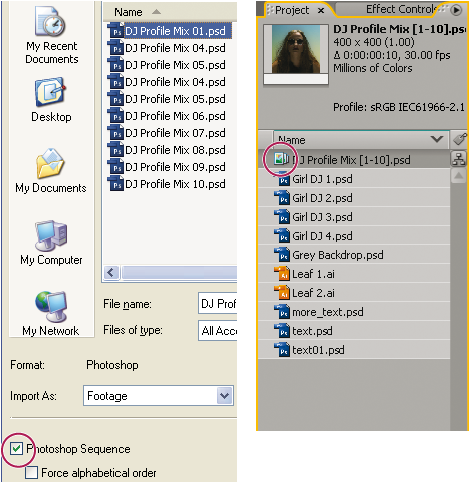
 Import a still-image sequence as a single footage item
If at any time you decide that you want access to the individual components of the footage item, you can convert it to a composition. See Convert a merged footage item into a composition.
Import a still-image sequence as a composition
When you import a Photoshop or Illustrator file as a composition, you have access to the individual layers, blending modes, adjustment layers, layer styles, masks, guides, and other features created in Photoshop or Illustrator. The imported composition and a folder containing each of its layers as footage items appears in the Project panel.
Change the frame rate of a sequence
When you import a sequence of still images, they assume the frame rate specified by the Sequence Footage preference in the Import category. The default rate is 30 frames per second (fps). You can change the frame rate after importing by reinterpreting the footage item:
 Select the sequence in the Project panel, choose
File > Interpret Footage > Main, and then
enter a new value for Assume This Frame Rate.
Select the sequence in the Project panel, choose
File > Interpret Footage > Main, and then
enter a new value for Assume This Frame Rate.For more information, see Change frame rate.