

Viewing a color channel or alpha channel
You
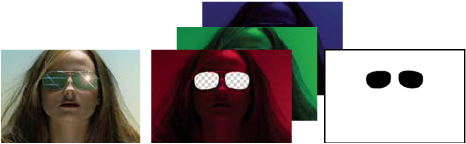
can view red, green, blue, and alpha channels—together or separately—in
a Footage, Layer, or Composition panel by clicking the Show Channel
button  at the
bottom of the panel and choosing from the menu. When you view a
single color channel, the image appears as a grayscale image, with
the color value of each pixel mapped to a scale from black (0 value
for the color) to white (maximum value for the color).
at the
bottom of the panel and choosing from the menu. When you view a
single color channel, the image appears as a grayscale image, with
the color value of each pixel mapped to a scale from black (0 value
for the color) to white (maximum value for the color).
 To see color values displayed in the channel’s
own color instead of white, choose Colorize from the Show Channel
menu.
To see color values displayed in the channel’s
own color instead of white, choose Colorize from the Show Channel
menu. When you preview the alpha channel, the image appears as a grayscale image, with the transparency value of each pixel mapped to a scale from black (completely transparent) to white (completely opaque).
You can view other channel values, such as saturation and hue, by applying the Channel Combiner effect and choosing Lightness from the To menu.