

Create a camera layer and change camera settings
You can view 3D layers from any angle and distance using camera layers. Just as it’s easier in the real world to move cameras through and around a scene than it is to move and rotate the scene itself, it’s often easiest to get different views of a composition by setting up a camera layer and moving it around in a composition.
You can modify and animate camera settings to configure the camera to match the real camera and settings that were used to record footage with which you’re compositing. You can also use camera settings to add camera-like behaviors—from depth-of-field blur to pans and dolly shots—to synthetic effects and animations.
Cameras affect only 3D layers and 2D layers to which you’ve applied an effect with a Comp Camera attribute. With effects that have a Comp Camera attribute, you can use the active composition camera or lights to view or light an effect from various angles to simulate more sophisticated 3D effects.
You can choose to view a composition through the
active camera or through a named custom camera. The active camera
is the topmost camera in the Timeline panel at the current time
for which the Video switch  is selected.
The active camera view is the point of view used for creating final
output and nesting compositions. If you have not created a custom
camera, then the active camera is the same as the default composition
view.
is selected.
The active camera view is the point of view used for creating final
output and nesting compositions. If you have not created a custom
camera, then the active camera is the same as the default composition
view.
All cameras are listed in the 3D View menu at the bottom of the Composition panel, where you can access them at any time.
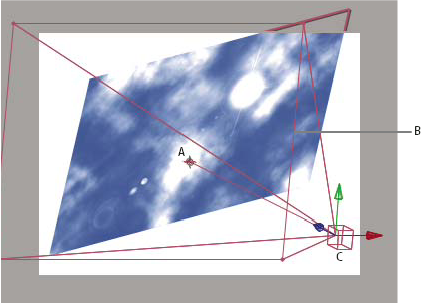
- A.
- Point of interest
- B.
- Frame
- C.
- Camera
 Create a camera layer
 Choose Layer > New >
Camera, or press Ctrl+Alt+Shift+C (Windows) or Command+Option+Shift+C
(Mac OS).
Choose Layer > New >
Camera, or press Ctrl+Alt+Shift+C (Windows) or Command+Option+Shift+C
(Mac OS).
Change camera settings
You can change camera settings at any time.
Double-click the camera layer in the Timeline
panel, or select the layer and then choose Layer > Camera
Settings.Camera settings
You can change camera settings at any time by double-clicking the layer in the Timeline panel or selecting the layer and choosing Layer > Camera Settings.
- Name
- The name of the camera. By default, Camera 1 is the name of first camera that you create in a composition, and all subsequent cameras are numbered in ascending order. You should choose distinctive names for multiple cameras to make it easier to distinguish them.
- Preset
- The type of camera settings you want to use. The presets are named according to focal lengths. Each preset is meant to represent the behavior of a 35mm camera with a lens of a certain focal length. Therefore, the preset also sets the Angle Of View, Zoom, Focus Distance, Focal Length, and Aperture values. The default preset is 50mm. You can also create a custom camera by specifying new values for any of the settings.
- Zoom
- The distance from the camera to the image plane.
- Angle Of View
- The width of the scene captured in the image. The Focal Length, Film Size, and Zoom values determine the angle of view. A wider angle of view creates the same result as a wide-angle lens.
- Enable Depth Of Field
- Applies custom variables to the Focus Distance, Aperture, F-Stop, and Blur Level settings. Using these variables, you can manipulate the depth of field to create more realistic camera-focusing effects. (The depth of field is the distance range within which the image is in focus. Images outside the distance range are blurred.)
- Focus Distance
- The distance from the camera to the plane that is in perfect focus.
- Lock To Zoom
-
Makes the Focus Distance value match the Zoom value.
Note: If you change the settings of the Zoom or Focus Distance options in the Timeline panel, the Focus Distance value becomes unlocked from the Zoom value. If you need to change the values and want the values to remain locked, then use the Camera Settings dialog box instead of the Timeline panel. Alternatively, you can add an expression to the Focus Distance property in the Timeline panel: Select the Focus Distance property, and choose Animation > Add Expression; then drag the expression pick whip to the Zoom property. (See Working with expressions.)
- Aperture
- The size of the lens opening. The Aperture setting also affects the depth of field—increasing the aperture increases the depth of field blur. When you modify Aperture, the values for F-Stop change to match it.
- F-Stop
- Represents the ratio of the focal length to aperture. Most cameras specify aperture size using the f-stop measurement; thus, many photographers prefer to set the aperture size in f-stop units. When you modify F-Stop, Aperture changes to match it.
- Blur Level
- The amount of depth-of-field blur in an image. A setting of 100% creates a natural blur as dictated by the camera settings. Lower values reduce the blur.
- Film Size
- The size of the exposed area of film, which is directly related to the composition size. When you modify Film Size, the Zoom value changes to match the perspective of a real camera.
- Focal Length
- The distance from the film plane to the camera lens. In After Effects, the camera’s position represents the center of the lens. When you modify Focal Length, the Zoom value changes to match the perspective of a real camera. In addition, the Preset, Angle Of View, and Aperture values change accordingly.
- Units
- The units of measurement in which the camera setting values are expressed.
- Measure Film Size
- The dimensions used to depict the film size.