

About animation, keyframes, and expressions
Animation is
change over time. You animate a layer or an effect on a layer by changing
one or more of its properties over time. For example, you can animate a
layer’s Opacity property from 0% to 100% to make the layer fade
in. Any property with a stopwatch button  to
the left of its name in the Timeline panel or Effect Controls panel
can be animated.
to
the left of its name in the Timeline panel or Effect Controls panel
can be animated.
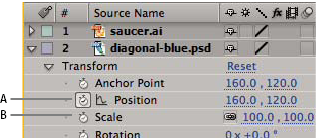
- A.
- Active stopwatch
- B.
- Inactive stopwatch
You animate layer properties using keyframes, expressions, or both.
To see a video tutorial on animating using keyframes, visit the Adobe website at www.adobe.com/go/vid0227.
Some tools, such as Motion Sketch and the Puppet tools, automatically set keyframes for you to match motion that you sketch.
Many animation presets include keyframes and expressions so that you can simply apply the animation preset to the layer to achieve a complex animated result.
You work with keyframes and expressions in After Effects in one of two modes: layer bar mode or Graph Editor mode. Layer bar mode is the default, which shows layers as duration bars, with keyframes and expressions aligned vertically with their properties in the Timeline panel. Graph Editor mode does not show layer bars, and shows keyframes and expression results in value graphs or speed graphs. (See Work with the Graph Editor.)
Keyframes
Keyframes are used to set parameters for motion, effects, audio, and many other properties, usually changing them over time. A keyframe marks the point in time where you specify a value, such as spatial position, opacity, or audio volume. Values between keyframes are interpolated. When you use keyframes to create a change over time, you typically use at least two keyframes—one for the state at the beginning of the change, and one for the new state at the end of the change. (See Set keyframes.)
When a keyframe is selected, information regarding its value, speed, and interpolation method are shown in the Info panel. Different information is shown depending on whether the Timeline panel is in Graph Editor mode or layer bar mode. You can also place the pointer over a keyframe in the Graph Editor to see some of this information.
 Right-click
(Windows) or Control-click (Mac OS) a keyframe to open its context menu.
Alt-click (Windows) or Option-click (Mac OS) two keyframes in layer
bar mode to display the duration between them in the Info panel.
Right-click
(Windows) or Control-click (Mac OS) a keyframe to open its context menu.
Alt-click (Windows) or Option-click (Mac OS) two keyframes in layer
bar mode to display the duration between them in the Info panel.When the stopwatch is active for a specific property, After Effects automatically sets or changes a keyframe for the property at the current time whenever you change property value. When the stopwatch is inactive for a property, the property has no keyframes. If you change the value for a layer property while the stopwatch is inactive, the value remains in effect for the duration of the layer.
If you deselect the stopwatch, all keyframes for that layer property are deleted, and the constant value for the property becomes the value at the current time. Don’t deselect the stopwatch unless you’re sure that you want to permanently delete all of the keyframes for that property.
Change the keyframe icons in layer bar mode to
numbers by choosing Use Keyframe Indices in the Timeline panel menu.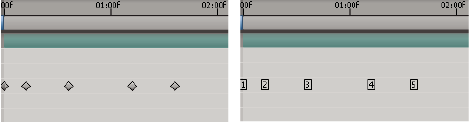
Before you make any changes to a keyframe, make sure that the current-time indicator is positioned at an existing keyframe. If you change a property value when the current-time indicator is not at an existing keyframe, After Effects adds a new keyframe. However, if you double-click a keyframe to modify it, the current-time indicator location is not relevant, nor is it relevant when you change a keyframe’s interpolation method.
Expressions
Expressions use a scripting language based on JavaScript to specify the values of a property and to relate properties to one another. You can create simple expressions by connecting properties with the pick whip.