

Time-stretch a layer
Speeding up or slowing down a layer is known as time-stretching. When you time-stretch a layer, the audio or the original frames in the footage (and all keyframes that belong to the layer) are redistributed along the new duration. Use this command only when you want the layer and all layer keyframes to change to the new duration.
If you time-stretch a layer so that the resulting frame rate is significantly different from the original frame rate, the quality of motion within the layer may suffer. For best results when time-remapping a layer, use the Timewarp effect.
 Time-stretch a layer from a specific time
Time-stretch a layer to a specific time
- In the Timeline panel, move the current-time indicator to the frame where you want the layer to begin or end.
- Display the In and Out columns by choosing Columns > In and Columns > Out from the Timeline panel menu.
- Do one of the following:
-
To stretch the In point to the current time, press Ctrl (Windows) or Command (Mac OS) as you click the In time for the layer in the In column.
-
To stretch the Out point to the current time, press Ctrl (Windows) or Command (Mac OS) as you click the Out time for the layer in the Out column.
-
Time-stretch a layer but not its keyframes
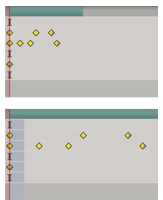
When you time-stretch a layer, the positions of its keyframes stretch with it by default. You can circumvent this behavior by cutting and pasting keyframes.
- Make a note of the time at which the first keyframe appears.
- In the Timeline panel, click the name of one or more layer properties containing the keyframes you want to keep at the same times.
- Choose Edit > Cut.
- Move or stretch the layer to its new In and Out points.
- Move the current-time indicator to the time at which the first keyframe appeared before you cut the keyframes.
- Choose Edit > Paste.