

Example: Animate text tracking
This example shows you how easy it is to isolate characters when tracking a line of text. Using the Tracking and Line Anchor animator properties, you can easily move all but one or a few characters.
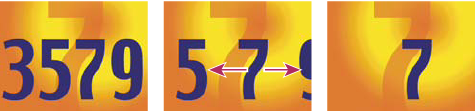
Animating the tracking values for the characters 3579 (left
and center) so that only the 7 in the middle remains
(right)
- Create a new composition.
- Create a new text layer and type 3579.
- With the text layer selected, click the Center Text button in the Paragraph panel.
- Choose View > Show Grid.
- In the Timeline panel, select the text layer and choose Animation > Animate Text > Tracking.
- Make sure that Before & After is specified in the Track Type menu.
- Click the Tracking Amount stopwatch and leave the value 0 at 0 seconds.
- Move the current-time indicator to 5 seconds and drag the Tracking Amount value until all characters are off the screen.
- Preview the animation.
- With the current-time indicator at 0, take a snapshot of the Composition panel. You will use this, and the grids, to determine the original location of the number 7 at the end of the animation.
- Move the current-time indicator to 5 seconds.
- Click the Show Last Snapshot button.
- In the Timeline panel, select Animator 1 and choose Line Anchor from the Add menu.
- Drag the Line Anchor value until the 7 is positioned in approximately its original position in the center of the Composition panel.
- Click the Show Last Snapshot button in the Composition panel to see the exact location of the 7 in its original location. Adjust the Line Anchor value to position the character in the original location.
- Preview the animation.