

Work with selectors
Each animator group includes a default range selector. You can replace the default selector, add additional selectors to an animator group, and remove selectors from a group.
Selectors are a lot like masks: You use selectors to specify which part of a range of text you want to affect, and by how much. You can use multiple selectors and specify a Mode setting for each one to determine how it interacts with the text and with other selectors in the same animator group. If you have only one selector, Mode specifies the interaction between the selector and the text—Add is the default behavior; and Subtract inverts the influence of the selector.
 If
you delete all selectors from an animator group, the values of the
animator properties apply to all characters in the layer. This is
useful because properties of the text specified by the Character
panel cannot otherwise be animated (except by using Hold keyframes
on the Source Text property itself).
If
you delete all selectors from an animator group, the values of the
animator properties apply to all characters in the layer. This is
useful because properties of the text specified by the Character
panel cannot otherwise be animated (except by using Hold keyframes
on the Source Text property itself).Use a Wiggly selector to vary a selection within a specified amount over time. Use expression selectors to use expressions to dynamically specify how much you want characters to be affected by an animator property.
-
To reorder
a selector, drag it to a new location in the stacking order in the Timeline
panel.
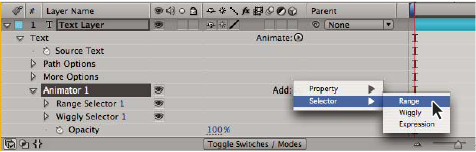 Adding a new range selector to an animator group
 Common selector properties
- Mode
- Specifies how each selector combines with the text and with selector above it, similar to how multiple masks combine when you apply a mask mode. For example, if you want to wiggle only a specific word, use a range selector on that word and then add a Wiggly selector and set it to Intersect mode.
- Amount
- Specifies how much the range of characters is affected by animator properties. At 0%, the animator properties do not affect the characters. At 50%, half of each property value affects the characters. This option is useful for animating the result of animator properties over time. Using an expression selector, you can use expressions to dynamically set this option.
- Units and Based On
-
The units for Start, End, and Offset. You can use either
the percentage or index units and base the selection on the characters,
characters excluding spaces, words, or lines. If you select Characters,
After Effects counts spaces and effectively pauses the animation
between words as it animates the spaces between words.
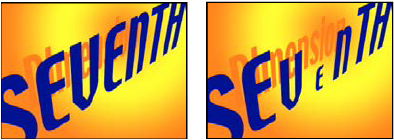 Original (left) and with VEN selected by the range selectors, Based On set to Character, Shape set to Triangle, and Scale set to 40% (right)
Range selector properties
Range selectors include the following properties, in addition to properties common with other selectors:
- Start and End
- The beginning and end of the selection. You can modify the Start and End properties by dragging the selector bars in the Composition panel when the selector is selected in the Timeline panel.
- Offset
- The amount to offset the selection from that specified by the Start and End properties. To set Offset in the Composition panel while you edit the Start or End values, Shift-click the Start or End selector bars with the Selection tool.
- Shape
-
Controls how characters are selected between the Start and
End of the range. Each option modifies the selection by creating
transitions between selected characters using the chosen shape.
For example, when animating the y Position values of text characters
using Ramp Down, the characters gradually move at an angle from
bottom left to upper right. You can specify Square, Ramp Up, Ramp
Down, Triangle, Round, and Smooth.
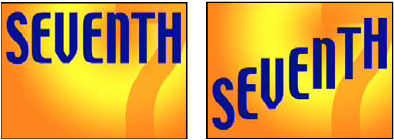 Original (left) and after selecting the entire word, setting Based On to Characters, animating the y Position value so that the word is at the bottom of the frame, and setting Shape to Ramp Down (right)
Using different Shape options, you can significantly change the appearance of an animation.
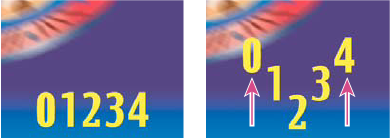 Setting Shape to Triangle
- Smoothness
- Determines the amount of time the animation takes to transition from one character to another when you use the Square shape.
- Ease High and Ease Low
- Determines the speed of change as selection values change from fully included (high) to fully excluded (low). For example, when Ease High is 100%, the character changes more gradually (eases into the change) while it is fully to partially selected. When Ease High is -100%, the character changes quickly while it is fully to partially selected. When Ease Low is 100%, the character changes more gradually (eases into the change) while it is partially selected to unselected. When Ease Low is -100%, the character changes quickly while it is partially selected to unselected.
- Randomize Order
- Randomizes the order in which the property is applied to the characters specified by the Range selector. (By contrast, when you use the Wiggly selector, the value of the animator property is randomized.)
- Random Seed
- Calculates the randomized order of a range selector when the Randomize Order option is set to On. When Random Seed is zero, the seed is based on its animator group. If you want to duplicate an animator group and retain the same randomized order as in the original animator group, set Random Seed to a value other than zero.
Wiggly selector properties
The Wiggly selector includes the following properties, in addition to properties common with other selectors:
- Max Amount and Min Amount
- Specifies the amount of variation from the selection.
- Wiggles/Second
- How many variations from the set selection occur per second.
- Correlation
- Correlation between variations for each character. At 100%, all characters wiggle by the same amount at the same time, and at 0%, all characters wiggle independently.
- Temporal and Spatial Phase (revolutions + degrees)
- The variation of wiggle, based on the phase of your animation in time (temporal) or per character (spatial).
- Lock Dimensions
- Scales the wiggled selection’s dimensions by the same value. This is useful when wiggling the Scale property.
- Random Seed
- Changes the starting time for the animation by a specified value. When the seed is left at zero, a default value is derived based on the layer index and stream path.
Expression selector properties
Expand the Expression Selector property group and the Amount property group to reveal the expression field in the Timeline panel. By default, the Amount property begins with the expression selectorValue * textIndex/textTotal.
Expression selectors allow you to express the selector values for each character. The expression is evaluated once per character. Each time it is evaluated, the input parameter textIndex is updated to match the index of the character.
Apply the Text
Bounce or Inch Worm animation preset to a text layer to see how expression
selectors can be used. To see all expressions on a layer, select
the layer and press EE.In addition to the expression elements you use elsewhere, you can use the following attributes to animate selections in any number of interesting ways:
- textIndex
- Returns the index of the character, word, or line.
- textTotal
- Returns the total number of characters, words, or lines.
- selectorValue
-
Returns the value of the previous selector. Think of this
as the input from the selector above the expression selector in
the stacking order.
Note: The attributes textIndex, textTotal, and selectorValue can be used only with the expression selector. Using them elsewhere results in a syntax error.
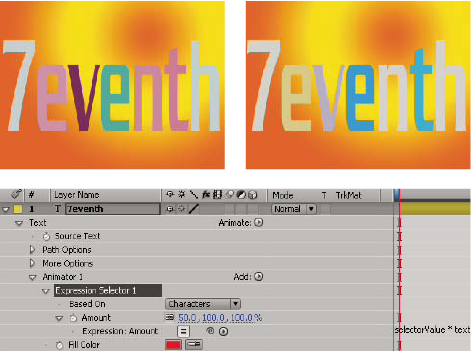 Fill color changes randomly using an expression animator.