

About groups and render order for shapes
Though the default is for a shape to consist of a single path, a single stroke, and a single fill—arranged from top to bottom in the Timeline panel—much of the power and flexibility of shape layers arises from your ability to add and reorder shape attributes and create more complex compound shapes.
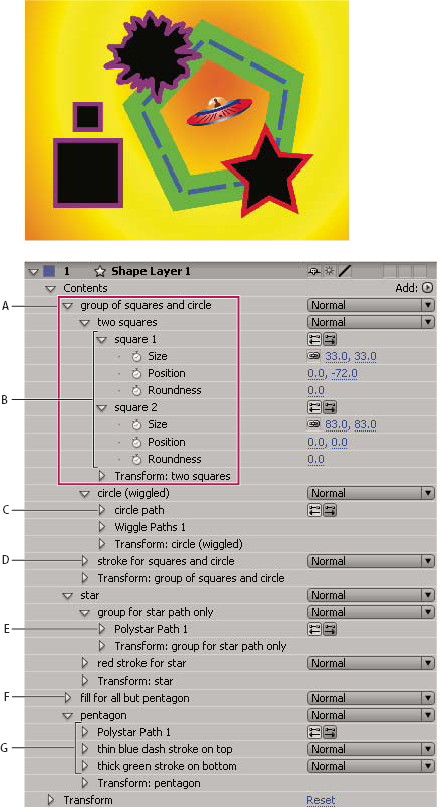
- A.
- Two shapes in a group
- B.
- Two paths in a compound shape
- C.
- Circle path with Wiggle Paths applied
- D.
- One stroke applied to all paths above it
- E.
- Star path in a group by itself
- F.
- One fill applied to all paths above it
- G.
- One path with two strokes
When you add a shape attribute using the Add menu in the Tools panel or Timeline panel, the attribute is added within the group that is selected. You can drag groups and attributes to reorder them in the Timeline panel. By reordering and grouping shapes and shape attributes, you can affect their rendering order with respect to other shapes and shape attributes.
Render order for shapes within a shape layer
The rules for rendering a shape layer are similar to the rules for rendering a composition that contains nested compositions:
-
Within a group, the shape at the bottom of the Timeline panel stacking order is rendered first.
-
All path operations within a group are performed before paint operations. This means, for example, that the stroke follows the distortions in the path made by the Wiggle Paths path operation. Path operations within a group are performed from top to bottom. (See Alter shape paths with path operations.)
-
Paint operations within a group are performed from the bottom to the top in the Timeline panel stacking order. This means, for example, that a stroke is rendered on top of (in front of) a stroke that appears after it in the Timeline panel. To override this default behavior for a specific fill or stroke, choose Above Previous In Same Group for the fill or stroke’s Composite property in the Timeline panel. (See Work with strokes and fills for shapes.)
Path operations and paint operations apply to all paths above them in the same group.
Transform properties for shape groups and shape paths
Each group has its own Transform property group. This Transform property group is represented in the Timeline panel with a property group named Transform: [group name] and in the Composition panel as a dashed box with handles. You can group a path by itself and transform only the path using its new Transform property group.
Introducing an additional Transform property group for a single path is useful, for example, for creating complex motion—such as spinning about one anchor point while also revolving along an orbit. The transformations of a group affect all shapes within the group; this is the same behavior as that of layer parenting. (See Work with parent and child layers.)
Each shape path also has intrinsic properties that affect the position and shape of the path. For parametric shape paths, these properties (such as Position and Size) are parameters visible in the Timeline panel. For Bezier shape paths, these properties are defined for each vertex but are contained within the Path property. When you modify a Bezier path using the free-transform bounding box, you modify these intrinsic properties for the vertices that constitute that path.