

Creating masks
You can create one or more masks for each layer in a composition using any of the following methods:
-
Draw a path using the shape tools or Pen tool from the Tools panel. Drawing a mask path is very similar to drawing a shape path. (See Creating shapes and masks.)
-
Specify the dimensions of the mask shape numerically in the Mask Shape dialog box.
-
Convert a shape path to a mask path.
-
Convert a motion path to a mask path.
-
Trace a color or alpha channel’s values to create a mask using the Auto-trace command.
-
Paste a path copied from another layer or from Adobe Illustrator, Photoshop, or Fireworks. (See Copy a path from Illustrator, Photoshop, or Fireworks.)
-
Convert a text layer to one or more editable masks by using the Create Outlines command and then linking the mask paths to the resulting shape paths.
When you create masks in a layer, the mask names appear in the Timeline panel outline in the order in which you create the masks. To organize and keep track of your masks, rename them. To rename a layer, select it and
press Enter (Windows) or Return (Mac OS).
To rename a layer, select it and
press Enter (Windows) or Return (Mac OS).When creating additional masks for one layer in the Layer panel, make sure that the Target menu in the Layer panel is set to None; otherwise, you will replace the targeted mask instead of creating a new mask. You can also lock a mask to prevent changes to it.
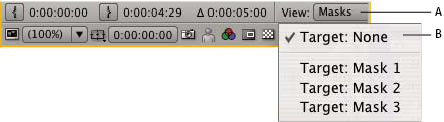 Menu selections to specify a mask to target in the Layer panel
- A.
- View menu
- B.
- Target menu