

Copy a path from Illustrator, Photoshop, or Fireworks
You can copy a path from Illustrator, Photoshop, or Fireworks and paste it into After Effects as a mask path or shape path.
Note: To make the data copied
from Illustrator compatible with After Effects, the AICB option
must be selected in the Files & Clipboard section of the Adobe
Illustrator Preferences dialog box.
- Choose Edit > Paste.
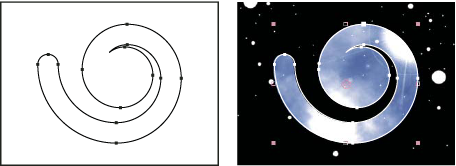 Path drawn in Adobe Illustrator (left) and pasted into After Effects as a mask (right)
Note: You can also use a copied Illustrator, Photoshop,
or Fireworks path as an After Effects motion path. See Create a motion path from a mask, shape, or paint path for more
information.