

About paths
Several features of After Effects, including masks and shapes, rely on the concept of a path. A path consists of segments and vertices. Segments are the lines or curves that connect vertices. Vertices define where each segment of a path starts and ends. Some Adobe applications use the terms anchor point and path point to refer to a vertex.
You change the shape of a path by dragging its vertices, the direction handles at the end of each vertex’s direction lines (or tangents), or the path segment itself.
You can draw paths in common geometric shapes—including polygons, ellipses, and stars—with the shape tools, or you can use the Pen tool to draw an arbitrary path. Paths drawn with the Pen tool are either manual Bezier paths or RotoBezier paths. The main difference between RotoBezier and manual Bezier paths is that direction lines are calculated automatically for RotoBezier paths, making them easier and faster to draw.
As a path exits a vertex, the angle and length of that vertex’s outgoing direction line determine the path. As the path approaches the next vertex, the path is less influenced by the previous vertex’s direction line and more influenced by the next vertex’s incoming direction line.
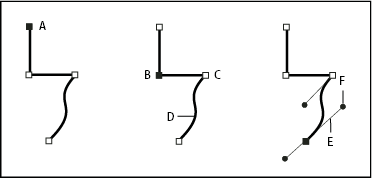
- A.
- Selected vertex
- B.
- Selected vertex
- C.
- Unselected vertex
- D.
- Curved path segment
- E.
- Direction line (tangent)
- F.
- Direction handle
Paths can have two kinds of vertices: corner points and smooth points. At a smooth point, path segments are connected as a smooth curve; the incoming and outgoing direction lines are on the same line. At a corner point, a path abruptly changes direction; the incoming and outgoing direction lines are on different lines. You can draw a path using any combination of corner and smooth points. If you draw the wrong kind of point, you can change it later.
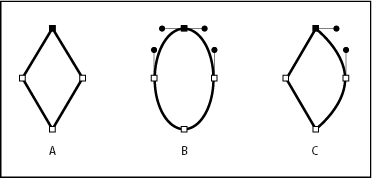
- A.
- Four corner points
- B.
- Four smooth points
- C.
- Combination of corner and smooth points
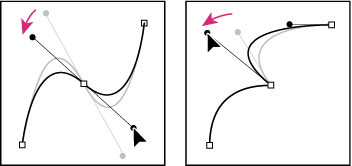
When you move a direction line for a smooth point, the curves on both sides of the point adjust simultaneously. By contrast, when you move a direction line on a corner point, only the curve on the same side of the point as the direction line is adjusted.
A path can either be open or closed. An open path has a beginning point that is not the same as its end point; for example, a straight line is an open path. A closed path is continuous and has no beginning or end; for example, a circle is a closed path.
For shape paths, you can use the Merge Paths path operation (similar to the Pathfinder effects in Adobe Illustrator) to combine multiple paths into one path. (See Merge Paths options.)
A path itself has no visual appearance in rendered output; it is essentially a collection of information about how to place or modify other visual elements. To make a path visible, you apply a stroke to it. In the case of a mask path, you can apply the Stroke effect. In the case of a path for a shape layer object, the default is for a path to be created with a stroke property group (attribute) after the path property group in the Timeline panel.
A color or gradient applied to the area inside the area bounded by a path is a fill.
When you use the shape tools (Rectangle, Rounded Rectangle, Ellipse, Polygon, or Star) to draw a shape path on a shape layer, you can create one of two kinds of paths: a parametric shape path or a Bezier shape path. (See About shapes and shape layers.)
You can link mask paths, paint stroke paths, and Bezier shape paths using expressions. You can also copy and paste between mask paths, paint stroke paths, Bezier shape paths, motion paths, and paths from Adobe Illustrator, Photoshop, and Adobe® Fireworks®. (See Creating shapes and masks.)