Select and copy text
The Select tool  lets
you select horizontal and vertical text or columns of text in a
PDF. You can use the Copy and Paste commands to copy the selected
text into another application. If you hold the pointer over the
text selection, a menu appears that lets you copy, highlight, or
underline the text, among other options. Note the following:
lets
you select horizontal and vertical text or columns of text in a
PDF. You can use the Copy and Paste commands to copy the selected
text into another application. If you hold the pointer over the
text selection, a menu appears that lets you copy, highlight, or
underline the text, among other options. Note the following:
-
If the text you copy
uses a font that isn’t available on your system, the font will be
substituted with a close match or a default font.
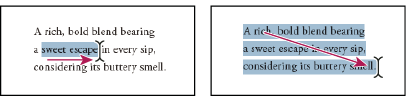 Select text by dragging from an insertion point to an end point (left) or by dragging diagonally over text (right).
 Select a word or line of text
-
Move
the Select tool over
the text you want to select. When the pointer changes to the I-beam
icon
 , do
one of the following:
, do
one of the following:-
Drag across the text to be selected. (You can also click to create an insertion point, and Shift-click to create a second insertion point. The text between the two insertion points is selected.)
-
Double-click to select a word.
-
Triple-click to select a line of text.
-
- If you want to extend a selection letter by letter, press Shift and an arrow key. To extend a selection word by word, press Shift+Ctrl (Windows) or Shift+Command (Mac OS) and an arrow key.
Select a column of text
-
Using
the Select tool , move
the pointer toward a column of text. When the pointer changes to
a vertical bar with a box superimposed, the Select tool is in column
select mode.
 You can force column select mode
by pressing the Alt key (Windows) or the Command key (Mac OS) as
you drag a rectangle over the column of text.
You can force column select mode
by pressing the Alt key (Windows) or the Command key (Mac OS) as
you drag a rectangle over the column of text.
Select all the text on a page
- Choose View > Page Display > Single Page.
- Do one of the following:
-
Choose Edit > Select All.
-
Select any text on the page and then press Ctrl+A (Windows) or Command+A (Mac OS).
-
Click four times in the text. This method selects all the text on the page regardless of the page layout.
Note: If you choose any other page layout, all the text in the document is selected.
-
Copy selected text
- Use the Select tool to
select any amount of text on the page.
- Copy the text:
-
Choose Edit > Copy to copy the selected text to another application.
-
Hold the pointer over the selection until a menu appears, and then select Copy.
-
Hold the pointer over the selection until a menu appears, and then choose Copy To Clipboard or Copy With Formatting. (Copy With Formatting, which preserves the column layout, appears only if the document is tagged properly.)
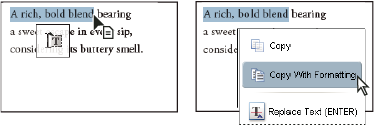 A menu appears when you hold the pointer over selected text.
You can paste copied text into comments and bookmarks as well as into documents authored in other applications.
-