Certify a PDF
When you certify a PDF, you indicate that you approve of its contents. You also specify the types of changes that are permitted for the document to remain certified. For example, suppose that a government agency creates a form with signature fields. When the form is complete, the agency certifies the document, allowing users to change only form fields and sign the document. Users can fill in the form and sign the document, but if they remove pages or add comments, the document doesn’t retain its certified status.
You
can apply a certifying signature only if the PDF doesn’t contain
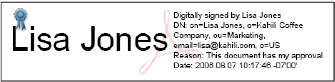
any other signatures. Certifying signatures can be visible or invisible,
and are indicated by the blue ribbon icon  in
the Signatures panel (and if visibly signed, in the signature field).
A digital ID is required to add digital signatures (see About digital signatures.)
in
the Signatures panel (and if visibly signed, in the signature field).
A digital ID is required to add digital signatures (see About digital signatures.)
-
Click
the Sign button
 in
the Tasks toolbar and choose one of the following options:
in
the Tasks toolbar and choose one of the following options: -
Certify With Visible Signature.
-
Certify Without Visible Signature. If you choose this option, your signature appears only in the Signatures panel.
Note: If you enabled View Documents In Preview Document Mode When Signing in the Security Preferences, click Sign Document in the document message bar.
-
- If you’re adding a visible signature, draw the signature
field on the page. Follow the on-screen instructions to select a
digital ID, if prompted.
 Specify a default ID to avoid being
prompted each time you sign a PDF.
Specify a default ID to avoid being
prompted each time you sign a PDF.