Create a bookmark hierarchy
You can nest a list of bookmarks to show a relationship between topics. Nesting creates a parent/child relationship. You can expand and collapse this hierarchical list as desired.
 Nest one or more bookmarks
- Drag the icon or icons directly underneath the parent
bookmark icon. The Line icon
 shows
the position of the icon or icons.
shows
the position of the icon or icons.
The bookmark is nested; however, the actual page remains in its original location in the document.
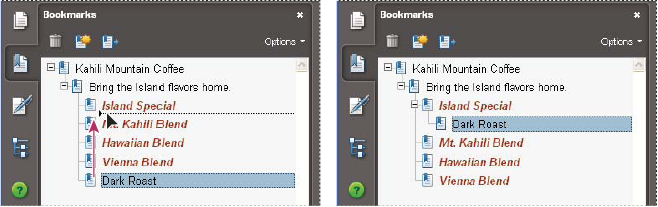 Nesting a bookmark (left), and the result (right)
Move bookmarks out of a nested
position
- Select the bookmark or range of bookmarks you want to move.
- Move the selection by doing one of the following:
-
Drag the icon or icons, positioning the arrow directly under the label of the parent bookmark.
-
Choose Cut from the Options menu, select the parent bookmark, and then choose Paste Under Selected Bookmark from the Options menu.
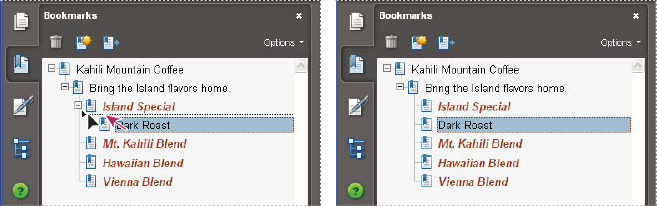 Moving a bookmark out of its nested position (left), and the result (right)
-
Expand or collapse a bookmark
Do one of the following:
- Click the plus sign (+) or horizontal triangle next to the bookmark icon to show any children. Click the minus sign (-) or inverted triangle to collapse the list again.
- Select the bookmark, and choose Expand Current Bookmark from the Options menu.
 From the Options menu, choose Expand
Top-Level Bookmarks or Collapse Top-Level Bookmarks.
From the Options menu, choose Expand
Top-Level Bookmarks or Collapse Top-Level Bookmarks.