Change rendering mode, lighting, projection, and background
The model rendering mode determines the surface appearance of the 3D model. The default rendering mode is usually solid, but you can also choose another rendering mode. You can also change the lighting of the 3D model as well as the background.
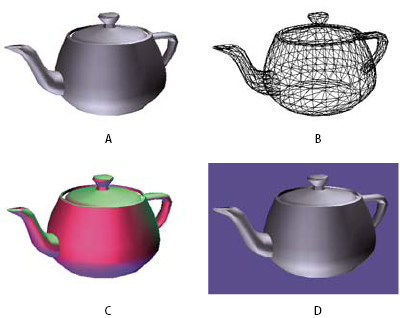
- A.
- Default appearance
- B.
- Wireframe rendering mode
- C.
- Colored lighting
- D.
- Different background color
 Use items on the 3D toolbar to make any of these
changes:
Use items on the 3D toolbar to make any of these
changes:-
To change the rendering style, choose an option from the Model Render Mode pop-up menu
 .
. -
To view an orthographic projection, click the Use Orthographic Projection button
 . An orthographic
projection effectively removes a dimension, preserving the
size ratio between objects but giving the 3D model a less realistic
appearance. Click the button again to use perspective projection.
. An orthographic
projection effectively removes a dimension, preserving the
size ratio between objects but giving the 3D model a less realistic
appearance. Click the button again to use perspective projection. -
To turn lighting on or off or to change lighting, choose an option from the Enable Extra Lighting pop-up menu
 .
. -
To change the background color, click the arrow next to the Background Color swatch and choose a color.
Note: Model Render Modes, Lighting Schemes, and Background Color options are also available by right-clicking/Control-clicking the 3D model. Model Render Modes also appear under the Options menu on the Model Tree panel.