Measure 3D objects
Use the 3D Measurement Tool to measure 3D models. You can create measurements between combinations of points or edges of the 3D model. As you move the pointer over the 3D model, specific points and edges are highlighted. The 3D Measurement Tool supports four types of measurements: perpendicular distance between two straight edges, linear distance between two points, the radius of circular edges, and the angle between two edges (or three points). You can also display comments while taking measurements. However, these comments (also called measurement markups) are not preserved after the document is closed.
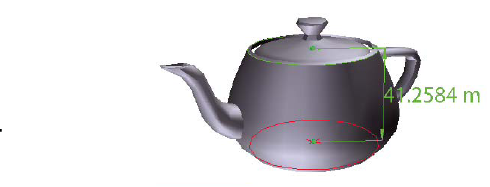
- Click a 3D model in a PDF to enable it.
- Click the 3D Measurement Tool icon
 on
the 3D toolbar. (If the 3D toolbar view is set for consolidated
tools, the 3D Measurement tool is available on the pop-up menu under
the Rotate, Spin, Pan, Zoom, or Walk tool.)
on
the 3D toolbar. (If the 3D toolbar view is set for consolidated
tools, the 3D Measurement tool is available on the pop-up menu under
the Rotate, Spin, Pan, Zoom, or Walk tool.) - In the 3D Measurement Tool palette, choose a 3D Measurement
Type:
Option Description Auto Displays the most likely type of measurement, based on the initial selection and the current pointer position.
Ruler Measures only between two points on the model.
Distance Measures only between a point and an edge.
Radius Takes radius measurements when you select either circular edges or three points defining a circle.
Angle Measures the angle between two straight edges or three points.
- (Optional) Change other options in the 3D Measurement Tool palette, as needed.
- Measure the 3D model:
-
To measure the distance between two positions on the 3D model, click to set a start point and move the pointer to another location or an edge.
-
To measure the circumference of a round shape, move the pointer to the edge of the shape so that a circle appears, and click once.
-
To create and set the position of an annotation on the measurement, select Measurement Markup in the 3D Measurement Tool palette and then type a markup message in Annotation. Measure the 3D model as described above, but click to set the end-point for the measurement and then click a third time to set the location of the measurement and annotation text.
-
To discontinue a measurement, right-click/Control-click and choose Cancel Measurement.
-
To delete a measurement markup, click it with the 3D Measurement Tool and press Delete.
 While
you measure, you can Alt-drag/Command-drag to rotate. Hold down
Shift and drag to pan. Hold down Alt+Shift/Command+Shift and drag
to zoom. Hold down Ctrl to disable snap.
While
you measure, you can Alt-drag/Command-drag to rotate. Hold down
Shift and drag to pan. Hold down Alt+Shift/Command+Shift and drag
to zoom. Hold down Ctrl to disable snap.
-
 3D Measurement Tool viewing options
Use the Options menu in the 3D Measurement tool palette to set viewing options.
- Show Details
-
Shows or hides the Cursor Location and Units And Markup Settings options in the 3D Measurement Tool palette.
- Show Rulers
-
Shows or hides vertical and horizontal rulers on the page. (Has the same effect as choosing View > Rulers.)
- Snap To 2D Content
-
Ensures precise measurement in 2D objects.
- Snap To 3D Content
-
Ensures precise measurement in 3D objects
- 3D Measurement Navigation Tips
-
Opens a dialog box with keyboard shortcuts for several 3D features. You can use these shortcuts while you are measuring.
- Ortho
-
Applies orthographic projection to the 3D object.
Units And Markup options in the
3D Measurement Tool palette
- Model Units Scale Ratio
-
Shows relationship between units in the model and real object measurements. Use the Display Units menu to select a different unit for the real object measurements.
- Measurement Markup
-
Select to have the measurements appear as comments in the PDF.
- Label
-
Type text that you want to appear with the measurement, both in the 3D model area and in the Comments panel. (Not available if Measurement Markup is not selected.)