Specify settings using trap presets
A trap preset is a collection of trap settings you can apply to pages in a PDF. Use the Trap Presets dialog box for entering trap settings and saving a collection of settings as a trap preset. If you don’t apply a trap preset to a trapping page range, that page range will use the [Default] trap preset, a collection of typical trap settings that are applied to all pages of a new document.
 Create or modify a trap preset
- Choose Advanced > Print Production > Trap Presets.
- Do one of the following:
-
Select an existing preset as a starting point, and then click Create.
-
Double-click a preset to edit it.
-
- Specify the following options, and then click OK:
Option Description Name Type a name for the preset. You cannot change the name of either of the two built-in presets: [No Trap Preset] and [Default].
Trap Width Type values to specify the amount of overlap for inks.
Trap Appearance Specify options for controlling the shape of the traps.
Images Specify settings that determine how to trap imported bitmap images.
Trap Thresholds Type values to specify the conditions under which trapping occurs. Many variables affect the values you’ll need to enter here. For more information, consult with your print service provider, and see the other trapping topics.
Delete a trap preset
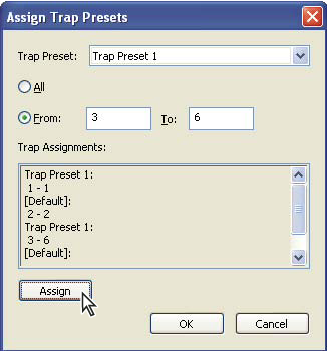
Assign a trap preset to pages
You can assign a trap preset to a document or to a range of pages in a document. Pages with no abutting colors will print faster if you disable trapping on those pages. Trapping doesn’t actually occur until you print the document.