Output Preview dialog box overview
The Output Preview dialog box simulates how your PDF looks in different conditions. The top part of the dialog box has several controls for previewing how your document will look in print. The Preview menu allows you to switch between previewing separations and previewing color warnings. When you select Separations, the bottom half of the dialog box lists information about the inks in the file, as well as ink warning controls and total area coverage controls. When you select Color Warnings, a warnings section replaces the separations section. The preview settings you specify in the Output Preview dialog box are reflected directly in the open document.
Output Preview also includes access to the complete Ink Manager (as seen in the rest of Adobe Creative Suite) for remapping spot-color inks in both printing and previewing, and setting line frequencies and screen angles. Ink mapping for previewing only applies when the Output Preview dialog box is open.
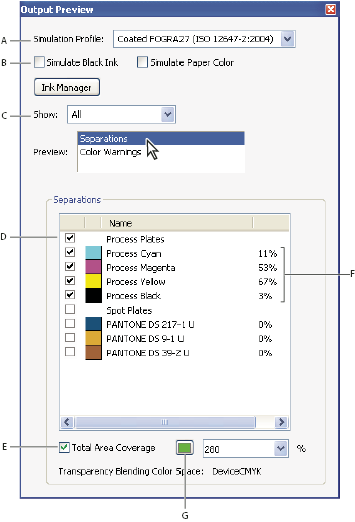
- A.
- Simulation Profile
- B.
- Simulate options
- C.
- Show options
- D.
- Separations list
- E.
- Total Area Coverage options
- F.
- Ink percentages
- G.
- Color display option
 Open the Output Preview dialog
box
Open the Output Preview dialog
box Do one of the following:
 on
the Print Production toolbar.
on
the Print Production toolbar.