Crop Pages dialog box overview
Use the Crop Pages dialog box to define boundaries for trim, bleed, and art when preparing your PDF for printing and other output. You can adjust the margins of document boxes supported by Adobe PDF, including the media (page size), trim, bleed, and art boxes. This capability is useful if the printer marks you add using the Add Printer Marks tool (not the Marks And Bleeds panel of the Advanced Print Setup dialog box) would be clipped because the crop box is too small to accommodate the marks. Print service providers can also use this tool to expand the page size for imposition tasks.
You can switch between boxes without losing the margins you set for each. As you adjust individual boxes, the preview in the Crop Pages dialog box is redrawn to reflect the new settings. For example, if you expand the crop or media box, the page content “shrinks” in the preview.
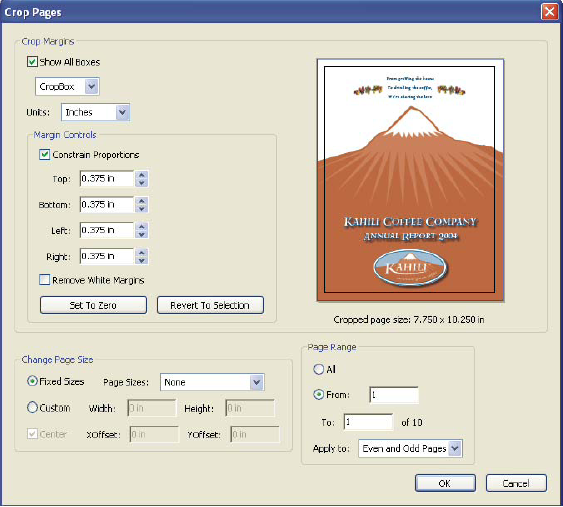
 Display the Crop Pages dialog box
Do any of the following:
- Choose Advanced > Print Production > Crop Pages.
- Select the Crop Pages tool
 on
the Print Production toolbar.
on
the Print Production toolbar. - Choose Document > Crop Pages.