View results as comments
You can embed preflight results as comments in the PDF and then view them as you would any PDF comments. For example, you can click Comments in the navigation pane to list each comment (or filtered comment) in a list.
 Insert and view preflight comments
- In the Preflight dialog box, click
Comments, or choose Insert Preflight Results As Comments from the
Options menu.
Each problem object is highlighted using the border style specified in Preflight preferences.
 You
can change the type of line, its thickness, and color on the Highlighting
tab of Preflight preferences.
You
can change the type of line, its thickness, and color on the Highlighting
tab of Preflight preferences. - In the PDF, hold the pointer over a comment to view its
contents.
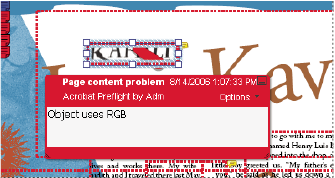 Sample PDF report with a sticky note
Remove preflight comments
 In the Preflight dialog box, choose
Remove Preflight Comments from the Options menu.
In the Preflight dialog box, choose
Remove Preflight Comments from the Options menu.Related Information