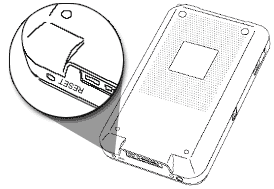
Warning: A Quick Erase will delete everything on your device. All your data will be removed, and formats, preferences and other settings are restored to their factory default settings. Don't perform a Quick Erase unless you've backed up your data, or you're willing to lose everything.
A Quick Erase does not delete the current date and time. It does restore other settings to the factory default.
HotSync note: Some third-party applications change the way your handheld backs up data. Other third-party applications do not back up data. If you have third-party software on your device, please contact the developer to learn what components are backed up during a HotSync operation, and if HotSync conduits are altered. Any data not backed up will be lost.
Password note: If you use a password to protect your device, you must do a Secure Erase when you hard reset your device; the Quick Erase option does not appear on the reset screen.