Straighten and smooth lines
To reshape lines and shape outlines, straighten or smooth them.
Straightening makes small straightening adjustments to lines and curves you already drew. It has no effect on segments that are already straight.
To make Flash recognize shapes, use the straightening technique. If you draw any oval, rectangular, or triangular shapes with the Recognize Shapes option turned off, use the Straightening option to make the shapes geometrically perfect. Shapes that are touching, and thus connected to other elements, are not recognized.
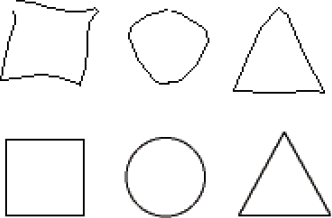
Smoothing softens curves and reduces bumps or other variations in a curve’s overall direction. It also reduces the number of segments in a curve. Smoothing is relative, however, and has no effect on straight segments. It is particularly useful when you are having trouble reshaping a number of very short curved line segments. Selecting all the segments and smoothing them reduces the number of segments, producing a gentler curve that is easier to reshape.
-
To smooth the curve of each selected fill outline or curved line, select the Selection tool and click the Smooth modifier
 in
the Options section of the Tools panel, or select Modify >
Shape > Smooth.
in
the Options section of the Tools panel, or select Modify >
Shape > Smooth. -
To make small straightening adjustments on each selected fill outline or curved line, select the Selection tool
 and
click the Straighten modifier
and
click the Straighten modifier  in
the Options section of the Tools panel, or select Modify > Shape >
Straighten.
in
the Options section of the Tools panel, or select Modify > Shape >
Straighten. -
To use shape recognition, select the Selection tool
and
click the Straighten modifier , or
select Modify > Shape > Straighten.
