About the Color panel
-
Import, export, delete, and otherwise modify the color palette for a file by using the Swatches panel.
-
Select colors in hexadecimal mode.
-
Create multicolor gradients.
-
Use gradients to produce a wide range of effects, such as giving an illusion of depth to a two-dimensional object.
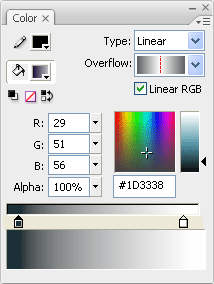
 Color panel options
- Stroke Color
-
Changes the color of the stroke, or the border, of a graphic object.
- Fill Color
-
Changes the color of the fill. The fill is the area of color that fills up the shape.
- Type Menu
-
Changes the fill style:
- None
-
Removes the fill.
- Solid
-
Provides a solid, single fill color.
- Linear
-
Produces a gradient that blends on a linear path.
- Radial
-
Produces a gradient that blends outward in a circular path from a central focal point.
- Bitmap
-
Tiles the selected fill area with a bitmap image that you can select. When you choose Bitmap, a dialog box lets you select a bitmap image on your local computer, and add it to the library. You can apply this bitmap as a fill; the appearance is similar to a mosaic tile pattern with the image repeated within the shape.
- RGB
-
Lets you change the density of the red, green, and blue (RGB) colors in a fill.
- Alpha
-
Sets the opacity for a solid fill, or the currently selected slider for a gradient fill. An alpha value of 0% creates an invisible (or transparent) fill; an alpha value of 100% creates an opaque fill.
- Current Color Swatch
-
Displays the currently selected color. If you select a gradient fill type (Linear or Radial) from the fill Type menu, the Current Color Swatch displays the color transitions within the gradient you create.
- System Color Picker
-
Lets you select a color visually. Click System Color Picker and drag the cross-hair pointer until you find the color you want.
- Hexadecimal value
-
Displays the current color’s hexadecimal value. To change the color using the hexadecimal value, type in a new value. Hexadecimal color values (also called hex values) are 6‑digit alphanumeric combinations that represent a color.
- Overflow
-
Lets you control colors applied past the limits of a linear or radial gradient.
- Extend
-
(Default) Applies the colors you specify past the end of the gradient.
- Reflect
-
Causes the gradient colors to fill the shape using a reflective mirroring effect. The gradients you specify are repeated in a pattern from the beginning of the gradient to the end, and then repeated in the opposite sequence from the end of the gradient to the beginning, and then back to the beginning of the gradient to the end until the selected shape is filled.
- Repeat
-
Repeats the gradient from the beginning of the gradient to the end until the selected shape is filled.
Note: Overflow modes are supported only in Flash Player 8 and later.
- Linear RGB
-
Creates a Scalable Vector Graphics (SVG)-compliant linear or radial gradient.
