Transform gradient and bitmap fills
You can transform a gradient or bitmap fill by adjusting the size, direction, or center of the fill.
-
Select the Gradient Transform tool
 from
the Tools panel.
from
the Tools panel.
-
Click an area filled with a gradient or bitmap fill.
A bounding box with editing handles appears. When the pointer is
over any one of these handles, it changes to indicate the function
of the handle.
- Center point
-
The rollover icon for the center point handle is a four-way arrow.
- Focal point
-
The focal point handle appears only when you select a radial gradient. The rollover icon for the focal point handle is an inverted triangle.
- Size
-
The rollover icon for the size handle (middle handle icon on the edge of the bounding box) is a circle with an arrow inside of it.
- Rotation
-
Adjusts the rotation of the gradient. The rollover icon for the rotation handle (the bottom handle icon on the edge of the bounding box) is four arrows in the shape of a circle.
- Width
-
Adjusts the width of the gradient. The rollover icon for the width handle (the square handle) is a double-ended arrow.
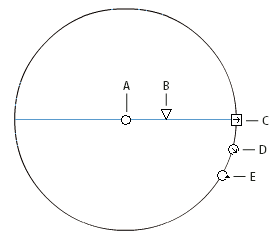 Radial Gradient controls
- A.
- Center point
- B.
- Width
- C.
- Rotation
- D.
- Size
- E.
- Focal point
Press Shift to constrain the direction of a linear gradient fill to multiples of 45°.
-
Reshape the gradient or fill in any of the following
ways:
-
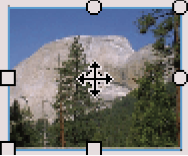
To reposition the center point of the gradient or bitmap fill, drag the center point.
-
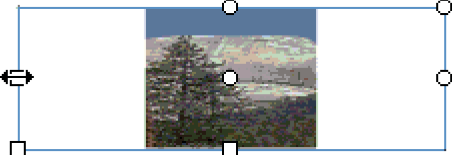
To change the width of the gradient or bitmap fill, drag the square handle on the side of the bounding box. (This option resizes only the fill, not the object containing the fill.)
-
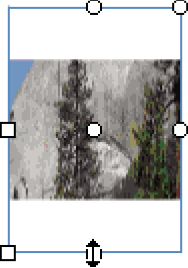
To change the height of the gradient or bitmap fill, drag the square handle at the bottom of the bounding box.
-
To rotate the gradient or bitmap fill, drag the circular rotation handle at the corner. You can also drag the lowest handle on the bounding circle of a circular gradient or fill.
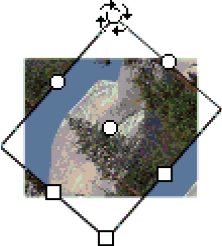
-
To scale a linear gradient or a fill, drag the square handle at the center of the bounding box.
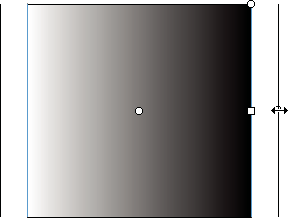
-
To change the focal point of a circular gradient, drag the middle circular handle on the bounding circle.
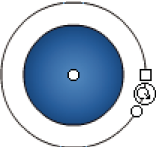
-
To skew or slant a fill within a shape, drag one of the circular handles on the top or right side of the bounding box.
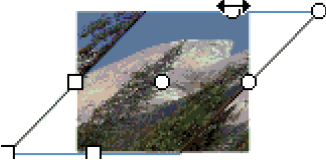
-
To tile a bitmap inside a shape, scale the fill.
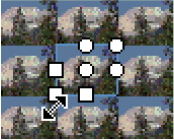
Note: To see all the handles when working with large fills or fills close to the edge of the Stage, select View > Pasteboard.
-
