Move, realign, change, and track the transformation point
During a transformation, a transformation point appears at the center of a selected element. The transformation point is initially aligned with the object’s center point. You can move the transformation point, return it to its default location, and move the default point of origin.
For scaling, skewing, or rotating graphic objects, groups, and text blocks, the point opposite the point you drag is the point of origin by default. For instances, the transformation point is the point of origin by default. You can move the default point of origin for a transformation.
You
begin a transformation by selecting the Free Transform tool  , or selecting
one of the Modify > Transform commands. Once you have begun a transformation,
you can track the location of the transformation point in the Info panel
and in the Property inspector.
, or selecting
one of the Modify > Transform commands. Once you have begun a transformation,
you can track the location of the transformation point in the Info panel
and in the Property inspector.
-
To display the transformation point coordinates in the
Info panel, click the Registration/Transformation Point button in
the Info panel. The lower-right square in the button becomes a circle
to indicate the registration point coordinates are being displayed.
When you select the center square, the X and Y values to the right of the coordinate grid in the Info panel display the x and y coordinates of the transformation point. In addition, the X and Y values for the transformation point appear in the Property inspector for the symbol.
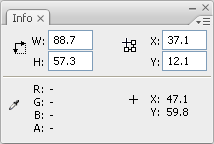 Coordinate grid; Info panel with Registration/Transformation Point button in transformation mode, and with x and y coordinates of selection transformation point visible
By default, the Registration/Transformation Point button is in registration mode, and the X and Y values display the location of the upper-left corner of the current selection, relative to the upper-left corner of the Stage.
Note: For symbol instances, the X and Y values display the location of the symbol registration point, or the location of the upper-left corner of the symbol instance.
