Scale objects
Scaling an object enlarges or reduces the object horizontally, vertically, or both.
-
Do one of the following:
-
To scale the object both horizontally and vertically, drag one of the corner handles. Proportions are maintained as you scale. Shift-drag to scale nonuniformly.
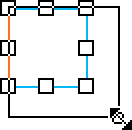
-
To scale the object either horizontally or vertically, drag a center handle.
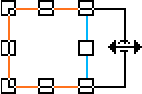
-
