Specifying a target
The ActionScript 2.0 target parameter can be either a number that represents a level (such as 0 for the _root document), or a string that represents the instance name of a movie clip ("myMovieClip").
Specifying a print area
The optional printArea parameter includes the following values:
{xMin:Number, xMax:Number, yMin:Number, yMax:Number}
The xMin, xMax, yMin, and yMax values represent screen pixels relative to the target level or movie clip registration point. The print area orientation is from the upper-left corner of the printable area on the page. If the print area is larger than the printable area on the page, the print data that exceeds the right and bottom edge of the page is clipped.
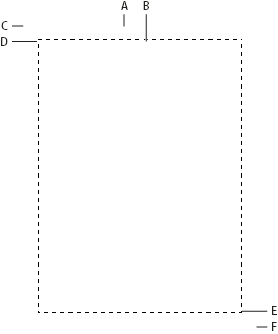
- A.
- Paper rectangle
- B.
- Page rectangle
- C.
- (594,774)
- D.
- (576,756)
- E.
- (0,0)
- F.
- (-18,-18)
If you don’t specify a print area, or if you specify an invalid print area, the print area defaults to the Stage area of the root document.
Scaling, points, and pixels
A print job using the PrintJob class prints Flash content, by default, without scaling it. For example, an object that is 144 pixels wide on screen prints as 144 points, or 2 inches wide.
One point equals one pixel. In the authoring tool, 72 pixels equals one inch; on paper, 72 points equals one inch.
To understand how Flash screen content maps to the printed page, it helps to understand screen and print units of measure. Pixels are a screen measurement and points are a print measurement. Both pixels and points equal 1/72 of an inch. A twip is 1/20 of a point and pixel.
The following list further illustrates the relationship between units of measure.
-
1 pixel = 20 twips
-
1 point = 20 twips
-
72 pixels = 1 inch
-
72 points = 1 inch
-
567 twips = 1 cm
-
1440 twips = 1 inch
To scale a movie clip before printing, set its MovieClip.xscale and MovieClip.yscale properties before calling this method, and set them back to their original values afterward. If you scale a movie clip and also pass a value for the printArea property, the pixel values passed to printArea reflect the original size of the movie clip. That is, if you set a movie clip’s scale to 50% and specify a print area of 500 x 500 pixels, the content that prints is identical to the content that would print if you didn’t scale the movie clip; however, it prints at half the size. For more information, see the addPage (PrintJob.addPage method) method of the printjob class in the ActionScript 2.0 Language Reference.
Note: For information on printing from SWF files at runtime using ActionScript 3.0, see “Printing” in Programming ActionScript 3.0.
Specifying printing as a vector image or bitmap graphic
The options parameter lets you specify whether to print as a vector graphic or bitmap image. When using this optional parameter, use the following syntax:
{printAsBitmap:boolean}
The default value is false, which represents a request for vector printing. Remember the following suggestions when determining which value to use:
-
If the content that you’re printing includes a bitmap image, specify that the print job print as a bitmap to include any transparency and color effects.
-
Conversely, if the content does not include bitmap images, specify that the print job print as vector graphics to take advantage of the higher image quality.
Specifying a frame to print
The frameNum parameter lets you specify a frame to print. If you do not specify a frame number parameter, by default the current frame of the target or level that you specify as the first parameter when you add a page prints.
