Use code hints
When you work in the Actions panel or Script window, the software can detect what action you are entering and display a code hint. There are two types of code hint: a tooltip that contains the complete syntax for that action, and a pop-up menu that lists possible ActionScript elements, such as method or property names (sometimes referred to as a form of code completion).
Code hints are enabled by default. By setting preferences, you can disable code hints or determine how quickly they appear. When code hints are disabled in preferences, you can still manually display a code hint for a specific command.
 Specify preference settings for
automatic code hints
Specify preference settings for
automatic code hints
- In the Actions panel or Script window, select Edit > Preferences (Windows) or Flash > Preferences (Macintosh), click ActionScript in the Category list, and then enable or disable Code Hints.
-
Select Preferences from the panel menu
 (at
the upper right of the Actions panel), and enable or disable Code
Hints in the ActionScript preferences.
(at
the upper right of the Actions panel), and enable or disable Code
Hints in the ActionScript preferences.
Specify a delay for code hints
- In the Actions panel or Script window, select Edit > Preferences (Windows) or Flash > Preferences (Macintosh).
- Click ActionScript in the Category list.
- Use the slider to select an amount of delay, in seconds.
Use tooltip-style code hints
-
Display the code hint by typing
an opening parenthesis “(“ after an element that requires parentheses
(for example, after a method name, a command such as if or do..while,
and so on).
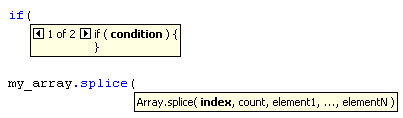 Opening parentheses invoke the code hints
-
Enter a value for the parameter.
For multiple parameters, separate the values with commas. For functions or statements, such as the for loop, separate the parameters with semicolons.
Overloaded commands (functions or methods that can be invoked with different sets of parameters) such as gotoAndPlay() or for display an indicator that lets you select the parameter you want to set. To select the parameter, click the small arrows or press Control+Left Arrow and Control+Right Arrow.
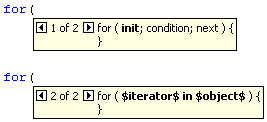 A code hint with multiple sets of parameters
Use menu-style code hints:
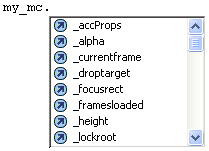
Manually display a code hint
-
Click in a code location where code hints
can appear, such as in the following locations:
-
After the dot (.) following a statement or command, where a property or method must be entered
-
Between parentheses [()] in a method name
-
-
Do one of the following:
-
Click Show Code Hint
 in
the Actions panel or Script window toolbar.
in
the Actions panel or Script window toolbar. -
Press Control+Spacebar (Windows) or Command+Spacebar (Macintosh).
-
From the panel menu
(at
the upper-right corner of the Actions panel), select Show Code Hint.
-
 From the panel menu