Debugging your ActionScript 1.0 and 2.0 scripts
The ActionScript 2.0 debugger helps you find ActionScript 1.0 and 2.0 errors while your SWF file runs in Flash Player. When using Flash to debug ActionScript 1.0 and 2.0, you view your SWF files in the debugger version of Flash Player, which is installed automatically with Flash. To install a stand-alone debugger version of Flash Player, run the installer in the /Flash installed directory/Players/Debug/ directory.
The ActionScript 2.0 Debugger shows a hierarchical display list of movie clips currently loaded in Flash Player. Using the ActionScript 2.0 Debugger, you can display and modify variable and property values as the SWF file plays, and you can use breakpoints to stop the SWF file and step through ActionScript code line by line. You can then go back to your scripts and edit them so that they produce the correct results.
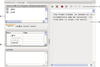
You can resize the regions of the Debugger panel. When your pointer changes between each region, drag to resize the Display list, Watch list, and code view. You can also click the vertical bar to expand either side of the Debugger to full size.
After it’s activated, the Debugger status bar displays the URL or local path of the file, tells whether the file is running in the test environment or from a remote location, and shows a live view of the movie clip display list. When movie clips are added to or removed from the file, the display list reflects the changes immediately.
The Test Movie command and keyboard controls
When you use the Control > Test Movie command to test SWF files that implement keyboard controls (tabbing, keyboard shortcuts created using Key.addListener(), and so on), select Control > Disable Keyboard Shortcuts. Selecting this option prevents the authoring environment from “grabbing” keystrokes, and lets them pass through to the player. For example, in the authoring environment, Control+U opens the Preferences dialog box. If your script assigns Control+U to an action that underlines text onscreen, when you use Test Movie, pressing Control+U opens the Preferences dialog box instead of running the action that underlines text. To let the Control+U command pass through to the player, you must select Control > Disable Keyboard Shortcuts.
Other debugging tools
Flash also provides the following debugging tools:
-
The Compiler Errors panel, which shows errors encountered when Flash compiles your scripts
-
The Output panel, which shows runtime error messages, and lists of variables and objects
-
The trace() statement, which sends programming notes and values of expressions to the Output panel
-
The throw and try..catch..finally statements, which let you test and respond to runtime errors from within your script
