Using ActionScript 3.0 Components 


Using ActionScript 3.0 Components |
|
|
|
| Customizing the UI Components > Customizing the TextInput > Using skins with the TextInput | |||
|
|||
|
|||
|
|||
The TextInput component uses the following skins, which you can edit to change its appearance:
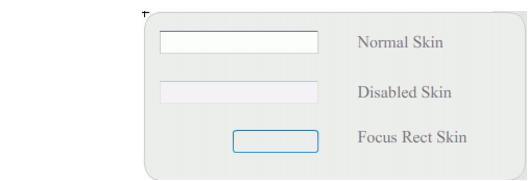
TextInput caption
The following procedure changes the border and background colors of a TextInput component:
 To change the colors of the TextInput component's border and background:
The TextInput component should appear as shown in the following illustration:

|
|||
|
|||
|
|||
|
|
|
|