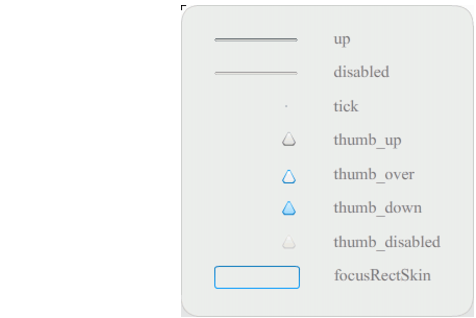
The Slider component uses the following skins, which you can edit to change its appearance.
The following example edits the up track to change its color to blue.
- Create a new Flash file (ActionScript 3.0).
- Drag the Slider component from the Components panel to the Stage.
- Double-click the Slider component to open its skins panel.
- Double-click the up track on its registration mark to open it in symbol-editing mode.
- Set the zoom control to 800% to enlarge the icon for editing. Notice that the Slider's track consists of three bars.
- Click the top bar to select it. When it's selected, its color will appear in the Fill color picker in the Property inspector.
- Using the Fill color picker in the Property inspector, select color #000066 to apply it to the top bar of the Slider track.
- Click the middle bar of the Slider track to select it. When it's selected, its color appears in the Fill color picker in the Property inspector.
- Using the Fill color picker in the Property inspector, select color #0066FF to apply it to the middle bar of the Slider track.
- Click the bottom bar of the Slider track to select it. When it's selected, its color appears in the Fill color picker in the Property inspector.
- Using the Fill color picker in the Property inspector, select color #00CCFF to apply it to the bottom bar of the Slider track.
- Click the Back button at the left side of the edit bar above the Stage to return to document-editing mode.
- Select Control > Test Movie.
The Slider should appear as it does in the following illustration.
:



 To change the color of the Slider's up track: