Using ActionScript 3.0 Components 


Using ActionScript 3.0 Components |
|
|
|
| Customizing the UI Components > Customizing the DataGrid > Using skins with the DataGrid | |||
|
|||
|
|||
|
|||
The DataGrid component uses the following skins to represent its visual states:
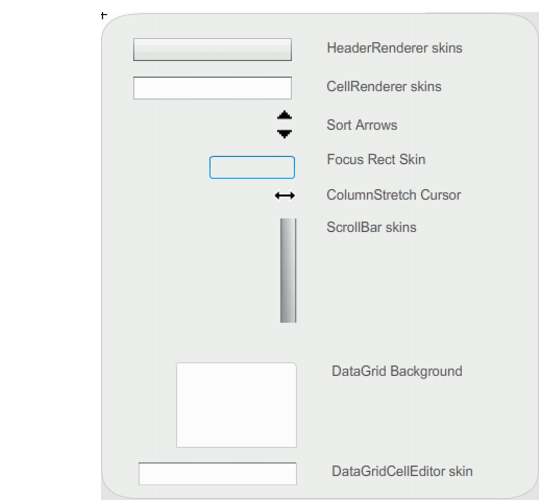
DataGrid skins
The CellRenderer skin is the skin used for the body cells of the DataGrid, while the HeaderRenderer skin is used for the header row. The following procedure changes the background color of the header row but you could use the same process to change the background color of the DataGrid's body cells by editing the CellRenderer skin.
 To change the background color of the DataGrid's header row:
import fl.data.DataProvider;

bldRosterGrid(aDg);
var aRoster:Array = new Array();
aRoster = [
        {Name:"Wilma Carter",  Home: "Redlands, CA"},
        {Name:"Sue Pennypacker",  Home: "Athens, GA"},
        {Name:"Jill Smithfield",  Home: "Spokane, WA"},
        {Name:"Shirley Goth", Home: "Carson, NV"},
        {Name:"Jennifer Dunbar",  Home: "Seaside, CA"}
];
aDg.dataProvider = new DataProvider(aRoster);
function bldRosterGrid(dg:DataGrid){
    dg.setSize(400, 130);
    dg.columns = ["Name", "Home"];
    dg.move(50,50);
    dg.columns[0].width = 120;
    dg.columns[1].width = 120;
};
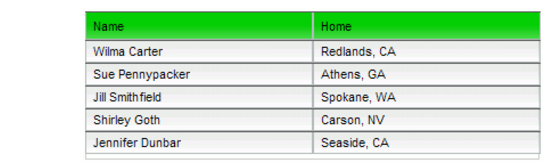
The DataGrid should appear as it does in the following illustration with the background of the header row in green.
|
|||
|
|||
|
|||
|
|
|
|