Using ActionScript 3.0 Components 


Using ActionScript 3.0 Components |
|
|
|
| Customizing the UI Components > Customizing the DataGrid > Using styles with the DataGrid > Setting styles for an individual column | |||
|
|||
|
|||
|
|||
A DataGrid object can have multiple columns, and you can specify different cell renderers for each column. Each column of a DataGrid is represented by a DataGridColumn object, and the DataGridColumn class includes a cellRenderer property, for which you can define the CellRenderer for the column.
 To create a multiline column in a DataGrid:
cellRenderer property to the name of a cell renderer that renders a multiple line cell.
/* This is a simple cell renderer example.  It invokes
the MultiLineCell cell renderer to display a multiple
line text field in one of a DataGrid's columns. */

import fl.controls.DataGrid;
import fl.controls.dataGridClasses.DataGridColumn;
import fl.data.DataProvider;
import fl.controls.ScrollPolicy;

// Create a new DataGrid component instance.
var aDg:DataGrid = new DataGrid();

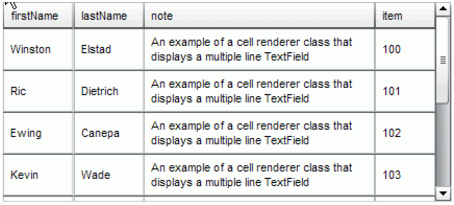
var aLongString:String = "An example of a cell renderer class that displays a multiple line TextField"
var myDP:Array = new Array();
myDP = [{firstName:"Winston", lastName:"Elstad", note:aLongString, item:100},
    {firstName:"Ric", lastName:"Dietrich", note:aLongString, item:101},
    {firstName:"Ewing", lastName:"Canepa", note:aLongString, item:102},
    {firstName:"Kevin", lastName:"Wade", note:aLongString, item:103},
    {firstName:"Kimberly", lastName:"Dietrich", note:aLongString, item:104},
    {firstName:"AJ", lastName:"Bilow", note:aLongString, item:105},
    {firstName:"Chuck", lastName:"Yushan", note:aLongString, item:106},
    {firstName:"John", lastName:"Roo", note:aLongString, item:107},
];

// Assign the data provider to the DataGrid to populate it.
// Note: This has to be done before applying the cellRenderers.
aDg.dataProvider = new DataProvider(myDP);

/* Set some basic grid properties.
Note: The data grid's row height should reflect
the number of lines you expect to show in the multiline cell.
The cell renderer wil size to the row height.
About 40 for 2 lines or 60 for 3 lines.*/

aDg.columns = ["firstName", "lastName", "note", "item"];
aDg.setSize(430,190);
aDg.move(40,40);
aDg.rowHeight = 40;  // Allows for 2 lines of text at default text size.
aDg.columns[0].width = 70;
aDg.columns[1].width = 70;
aDg.columns[2].width = 230;
aDg.columns[3].width = 60;
aDg.resizableColumns = true;
aDg.verticalScrollPolicy = ScrollPolicy.AUTO;
addChild(aDg);
// Assign cellRenderers.
var col3:DataGridColumn = new DataGridColumn();
col3 = aDg.getColumnAt(2);
col3.cellRenderer = MultiLineCell;
package {


    import fl.controls.listClasses.CellRenderer;

    public class MultiLineCell extends CellRenderer
    {

        public function MultiLineCell()
        {
            textField.wordWrap = true;
            textField.autoSize = "left";
        }
        override protected function drawLayout():void {
            textField.width = this.width;
            super.drawLayout();
        }
    }
}
The DataGrid should look like this:
|
|||
|
|||
|
|||
|
|
|
|