Using ActionScript 3.0 Components 


Using ActionScript 3.0 Components |
|
|
|
| Customizing the UI Components > Customizing the ComboBox > Using Skins with the ComboBox | |||
|
|||
|
|||
|
|||
The ComboBox uses the following skins to represent its visual states:
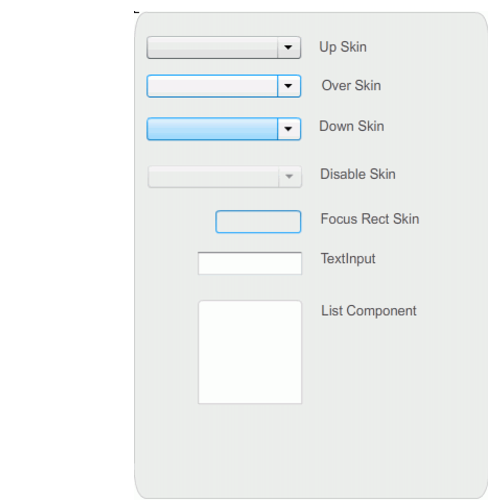
ComboBox skins
You can change the color of the Up skin to change the color of the component in its inactive state on the Stage.
 To change the color of the Background skin:
The ComboBox should appear on the Stage as shown in the following illustration.

|
|||
|
|||
|
|||
|
|
|
|