Using skins with the CheckBox

The CheckBox component has the following skins, which you can edit to change its appearance.
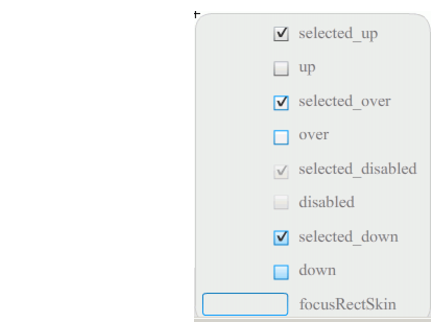
CheckBox skins

CheckBox skins


This example changes the outline color and background color of the component in its up and selectedUp states. You would follow similar steps to change the skins for other states.

To customize CheckBox skins:

  1. Create a new Flash file (ActionScript 3.0) document.
  2. Drag the CheckBox component to the Stage, which also places it in the library with a folder of its assets.
  3. Double-click the CheckBox component on the Stage to open its panel of Skin icons.
  4. Double-click the selected_up icon to open it in symbol-editing mode.
  5. Set the zoom control to 800% to enlarge the icon for editing.
  6. Click the border of the CheckBox to select it. Use the Fill color picker in the Property inspector to select color #0033FF and apply it to the border.
  7. Double-click the background of the CheckBox to select it and again use the Fill color picker to set the color of the background to #00CCFF.
  8. Repeat steps 4 to 8 for the CheckBox up skin.
  9. Select Control > Test Movie.
