Using ActionScript 3.0 Components 


Using ActionScript 3.0 Components |
|
|
|
| Working with Components > Setting parameters and properties | |||
|
|||
|
|||
|
|||
Each component has parameters that you can set to change its appearance and behavior. A parameter is a property of the component's class and appears in the Property inspector and the Component inspector. The most commonly used properties appear as authoring parameters; others you must set with ActionScript. All parameters that can be set during authoring can also be set with ActionScript. Setting a parameter with ActionScript overrides any value set during authoring.
Most ActionScript 3.0 User Interface components inherit properties and methods from the UIComponent class as well as from a base class. For example, the Button and CheckBox classes inherit properties from both the UIComponent class and the BaseButton class. A component's inherited properties, as well as its own class properties, are available for you to access. For example, the ProgressBar component inherits the ProgressBar.enabled property from UIComponent but also has its own ProgressBar.percentComplete property. You can access both of these properties to interact with an instance of the ProgressBar component. For more information on a component's properties, see its class entry in the ActionScript 3.0 Language and Components Reference.
You can set parameters for a component instance using either the Property inspector or the Component inspector.
 To enter an instance name for a component in the Property inspector:
It's a good idea to add a suffix to the instance name to indicate what kind of component it is; this makes it easier to read your ActionScript code. In this example, the instance name is licenseSb because the component is a scroll bar that scrolls a license agreement in the licenseTa text area.
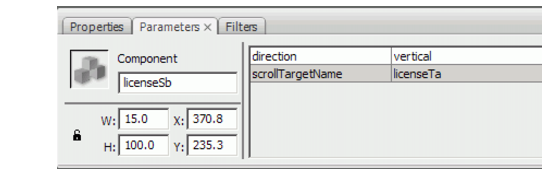
Component instance name field
To enter parameters for a component instance in the Component inspector: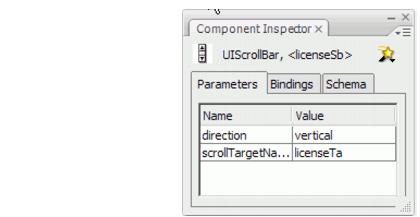
Component parameters in the Component inspector
|
|||
|
|||
|
|||
|
|
|
|