Using ActionScript 2.0 Components 


Using ActionScript 2.0 Components |
|
|
|
| Creating an Application with Components > Build the main page | |||
|
|||
|
|||
|
|||
Follow these steps to create the application's main page by adding components to a skeletal starter page. Then add ActionScript code to customize the components, import the ActionScript classes that allow you to manipulate the application's components, and access a web service to populate the combo box with a list of offenses. The code populates the combo box by setting its dataProvider property to receive the results from the web service.
The file contains a start page that looks like the following:
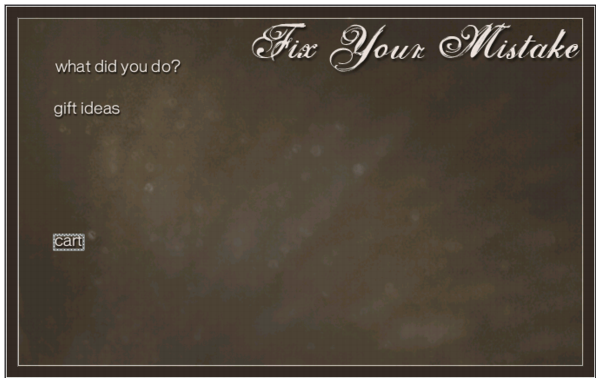
The start_app.fla file contains three layers: a background layer with a black background image and text titles, a text layer with text labels for sections of the application, and a labels layer with labels on the first frame (Home) and the tenth frame (Checkout).
|
NOTE |
The ComboBox component symbol is added to the library (Window > Library). When you drag an instance of a component to the Stage, the compiled clip symbol for the component is added to the library. As with all symbols in Flash, you can create additional instances of the component by dragging the library symbol onto the Stage. |
Drag an instance of the XMLConnector component from the Components panel to the side of the Stage. (Like the DataSet component, the XMLConnector component does not appear in the application at runtime.) Enter products_xmlcon for the instance name. Click the Parameters tab in the Property inspector, and type http://www.flash-mx.com/mm/firstapp/products.xml for the URL property. Click the value for the direction property to activate the combo box, click the down-arrow and select receive from the list.
|
NOTE |
You can also use the Component inspector (Window > Component Inspector) to set parameters for components. The Parameters tab in the Property inspector and the Component inspector work in the same way. |
The URL specifies an external XML file with data about the products that appear in the Gift Ideas section of the application. Later in the tutorial you will use data binding to bind the XMLConnector, DataSet, and DataGrid components together; the DataSet component filters data from the external XML file, and the DataGrid component will display it.
label property. For the x and y coordinates, enter 560.3 and 386.0, respectively. |
|||
|
|||
|
|||
|
|
|
|