Getting Started with Flash Lite 1.x 


Getting Started with Flash Lite 1.x |
|
|
|
| Flash Lite Overview > Hello World Flash Lite application | |||
|
|||
|
|||
|
|||
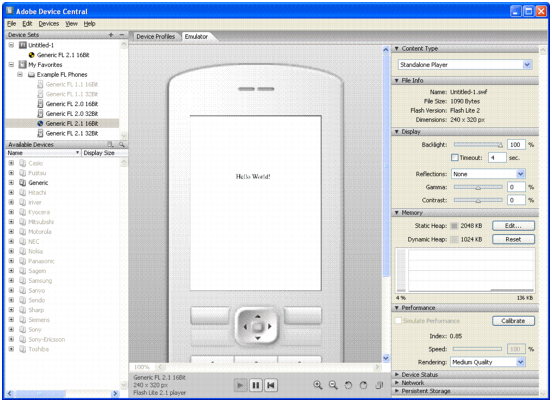
In this section, you create a simple Flash Lite application and test it in the Adobe Device Central emulator. The purpose of this tutorial is to acquaint you with the mobile authoring and testing features in Adobe Flash CS3 Professional as well as the general workflow for creating Flash Lite content. For a more complete sample application, see Creating a Flash Lite Application.
First, you need to decide which devices and Flash Lite content type you are targeting. For the purposes of this tutorial, we'll assume that you're developing content for the Flash Lite 1.1 stand-alone player on the Series 60 devices from Nokia. All of the supported Nokia Series 60 devices have the same available Stage size (176 x 208 pixels), so in theory, the same application (SWF file) will run on all of those devices.
To begin development, you first need to configure your Flash document's publish settings, document settings, and device settings for the target device and content type. You can do this manually using a new blank document, or you can use a Flash Lite template (see Using Flash Lite document templates) to create a new document that's preconfigured with the proper settings for your target device and content type. The following procedure explains how to create a simple Hello World application.
 To configure and create a simple Flash Lite application:
Type Hello, world! (or other text) in the text box.
Note: During testing in Device Central, you can change the device and content type to see your application on a different platform. To do this, double-click a device in the Available Devices panel and select a new content type from Content Type. When you return to Flash, Flash remembers the settings you last used in the emulator.
|
|||
|
|||
|
|||
|
|
|
|