

Interacting with the emulator
You can use your computer mouse or use keyboard shortcuts to interact with the emulator's keypad. You can interact with the following keys on the emulator's keypad:
- Number keys (0 to 9), and the asterisk (*) and pound (#) keys
- Navigation keypad (left, right, down, up, and select)
- Left and right soft keys
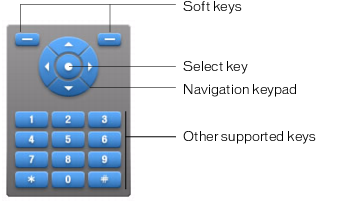
You can use your mouse to click the emulator's keypad directly, or you can use the following equivalent keyboard shortcuts:
- The arrow keys on your keyboard (left, right, up, down) map to the corresponding navigation keys on the emulator's navigation keypad.
- The Enter or Return key corresponds to the emulator's select key.
- The Page Up and Page Down keys correspond to the emulator's left and right soft keys, respectively.
- The number keys on your keyboard map to the corresponding number keys on the emulator keypad.
For additional details about interacting with the emulator to test your application, see the Adobe Device Central online help.