

Import and play a device sound
To play a device sound you can either attach it to the Timeline or use the Sound object to play the device sound with ActionScript.
- Create a new document from the Flash Lite 2.0 Symbian Series 60 document template, and save it as device_sound.fla.
For more information about using the Flash Lite document templates, see "Creating a Flash Lite document template" in Getting Started with Flash Lite 2.x and 3.0.
- Select File > Import > Import to Library. On the Samples and Tutorials page at http://www.adobe.com/go/learn_flt_samples_and_tutorials, locate, download and decompress the ZIP file for your Flash Lite version, and then navigate to the Samples folder.
- Select the proxy.wav file and click OK.
NOTE
You can use any sound file that's recognized by the Flash authoring tool as the proxy sound. The proxy.wav file is provided for your convenience.
- To link the proxy sound to the device sound file, do the following:
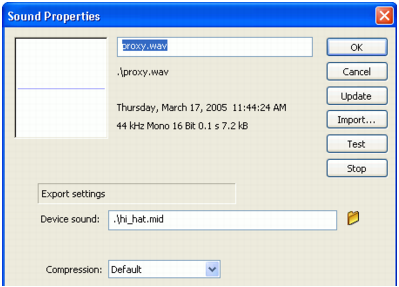
- In the Library panel, right-click (Windows®) or Control-click (Macintosh®) the proxy sound symbol and select Properties from the context menu to open the Sound Properties dialog box.
- In the Sound Properties dialog box, click the folder icon to the right of the Device Sound text box to open the Select Device Sound dialog box.
- Browse to http://www.adobe.com/go/learn_flt_samples_and_tutorials. On the Samples and Tutorials page, locate, download and decompress the ZIP file for your Flash Lite version, and then navigate to the Samples folder and select the file named hi_hat.mid.
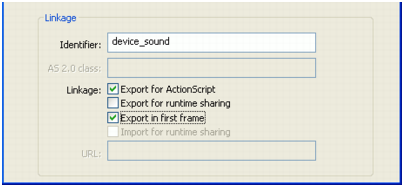
- (Optional) To control the device sound with ActionScript, click Advanced to display the advanced sound properties options, select Export For ActionScript, and type device_sound in the Identifier text box.
- Click OK to close the Sound Properties dialog box.
To play the device sound, you can either attach the proxy sound to the Timeline or use the ActionScript sound object. To use the ActionScript sound object, skip to step 6.
- To attach the device sound to the Timeline, do the following:
- Select the keyframe on Frame 1 on the layer named Content.
- In the Property inspector, select proxy.wav from the Sound pop-up menu.
This attaches the proxy sound to the keyframe.

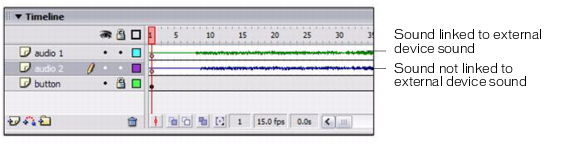
The Flash authoring tool displays the proxy sound's waveform in the Timeline. Waveforms for sounds that are linked to external device sounds are colored green; waveforms for sounds that are not linked to external device sounds are colored blue, as the following image shows.
- To play the sound with ActionScript, do the following:
- Select the layer named Actions in the Timeline.
- Open the Actions panel (Window > Actions), and type the following code:
var deviceSound:Sound = new Sound();
deviceSound.attachSound("device_sound");
deviceSound.start();
- Open the Actions panel (Window > Actions), and type the following code:
- Select Control > Test Movie to start the Adobe Device Central emulator and test your SWF file.