

Create a scrolling text field and control it with ActionScript
- In Flash, create a new document from the Flash Lite 2.0 template that you created earlier in "Creating a Flash Lite document template" in Getting Started with Flash Lite 2.x and 3.0.
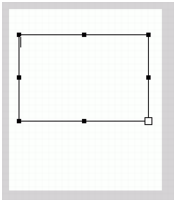
- Using the Text tool, drag a text field approximately the size shown in the following image on the Stage:
- Select Multiline from the Line Type pop-up menu in the Property inspector.
- Select Dynamic Text from the Text Type pop-up menu in the Property inspector.
- Select Use Device Fonts from the Font Rendering Method pop-up menu in the Property inspector.
- Select Text > Scrollable to make the text field scrollable.
- Type story in the Instance Name text box in the Property inspector.
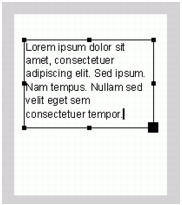
- Double-click inside the text field, and enter enough text so that one or more lines of text extend below its lower edge.
- In the Timeline, select the first frame on Layer 1, and open the Actions panel
(Window > Actions). Enter the following code in the Actions panel:var keyListener:Object = new Object(); keyListener.onKeyDown = function() { var keyCode = Key.getCode(); if (keyCode == Key.DOWN) { story.scroll++; } else if (keyCode == Key.UP) { story.scroll--; } }; Key.addListener(keyListener); - Select Control > Test Movie to test the application in the Adobe Device Central emulator.
Click the up and down navigation keys on the emulator (or the Up Arrow and Down Arrow keys your computer's keyboard) to scroll the text up or down.