Developing Flash Lite 2.x and 3.0 Applications
Embed font outlines for a dynamic or input text field
- Select the dynamic or input text field on the Stage.
- In the Property inspector, select Bitmap (No Anti-Alias) or Anti-Alias For Animation from the Font Rendering Method pop-up menu.
- Click the Embed button located next to the Font Rendering Method menu to open the Character Embedding dialog box.
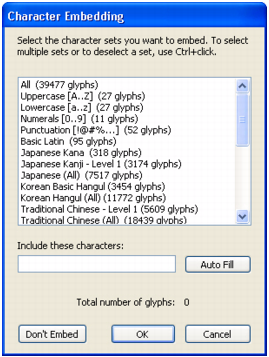
- Select the characters you want to embed from the list, type the characters that you want to embed in the text box, or click Auto Fill to include the characters that are in the selected text field.
- Click OK.

