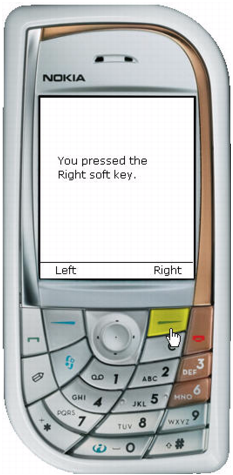
Use the soft keys in an application
- Create a new document from the Flash Lite 2.0 template that you created in "Creating a Flash Lite document template" in Getting Started with FlashLite 2.x and 3.0, and save it as softkey.fla.
- Using the Text tool, create a static text field named Left and position it in the lower-left corner of the Stage, above the left soft key on the device.
- Create another static text field named Right, and position it in the lower-right corner of the Stage, above the right soft key on the device.
- Using the Text tool, create a dynamic text field, and position it in the middle of the Stage.
Your document's Stage should look like the following example:
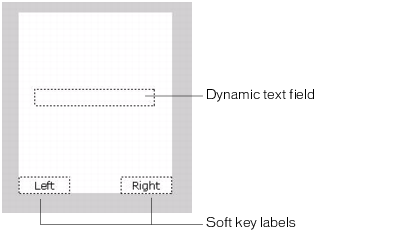
- With the dynamic text field still selected, in the Property inspector, type status in the Instance Name text box.
- Open the Actions panel (Window > Actions) and, in the Timeline, select Frame 1 in Layer 1.
- In the Actions panel, type the following code:
fscommand2("SetSoftKeys", "Left", "Right"); fscommand2("FullScreen", true); - Create and register an object to respond to keypress events (see Handle keypress events through a key listener) by entering the following code in the Actions panel:
var myListener:Object = new Object(); myListener.onKeyDown = function() { if (Key.getCode() == ExtendedKey.SOFT1) { // Handle left soft keypress event. status.text = "You pressed the Left soft key."; } else if (Key.getCode() == ExtendedKey.SOFT2) { // Handle right soft keypress event. status.text = "You pressed the Right soft key."; } }; Key.addListener(myListener); - Select Control > Test Movie to test the application in the emulator.
To test the application, click the left and right soft keys on the emulator with your mouse, or press the Page Up and Page Down keys on your keyboard.