Using the Flash Video Cue Points dialog box

Open the Flash Video Cue Points dialog box by double-clicking the Value cell of the cuePoints parameter in the Component inspector. The dialog box looks like the following figure:
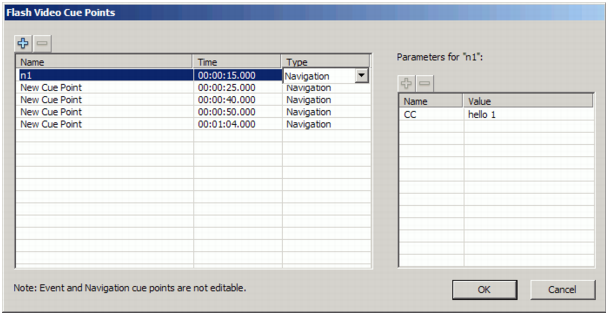
The dialog box displays embedded and ActionScript cue points. You can use this dialog box to add and delete ActionScript cue points as well as cue point parameters. You can also enable or disable embedded cue points. However, you cannot add, change, or delete embedded cue points.

To add an ActionScript cue point:

  1. Select an instance of the FLVPlayback component.
  2. Double-click the value cell of the cuePoints parameter in the Component inspector to open the Flash Cue Points dialog box.
  3. Click the plus (+) sign in the upper-left corner, above the list of cue points, to add a default ActionScript cue point entry.
  4. Click the New Cue Point text in the Name column, and edit the text to name the cue point.
  5. Click the Time value of 00:00:00:000 to edit it, and assign a time for the cue point to occur. You can specify the time in hours, minutes, seconds, and milliseconds (HH:MM:SS.mmm).

    If multiple cue points exist, the dialog box moves the new cue point to its chronological position in the list.

  6. To add a parameter for the selected cue point, click the plus (+) sign above the Parameters section, and enter values in the Name and Value columns. Repeat this step for each parameter.
  7. To add more ActionScript cue points, repeat the steps above for each cue point that you want to add.
  8. Click OK to save your changes.

To delete an ActionScript cue point:

  1. Select an instance of the FLVPlayback component.
  2. Double-click the value cell of the cuePoints parameter in the Component inspector to open the Flash Cue Points dialog box.
  3. Select the cue point that you want to delete.
  4. Click the minus (-) sign in the upper-left corner, above the list of cue points, to delete it.
  5. Repeat the steps above for each cue point that you want to delete.
  6. Click OK to save your changes.

To enable or disable an embedded FLV file cue point:

  1. Select an instance of the FLVPlayback component.
  2. Double-click the value cell of the cuePoints parameter in the Component inspector to open the Flash Cue Points dialog box.
  3. Select the cue point you want to enable or disable.
  4. Click the value in the Type column to trigger the pop-up menu, or click the Down arrow.
  5. Click the name of the type of cue point (for example, Event or Navigation) to enable it. Click Disabled to disable it.
  6. Click OK to save your changes.
