Use this screen to play back the video that you selected in the previous screen.
If Giga Pocket is installed on the server, play back of original MPEG1, AVI (including DV-AVI, and DivX), WMV, and MPEG4 files cannot be performed while Giga Pocket is recording.
Video playback is controlled with the following buttons.
The playback control buttons are automatically hidden during playback. You can display the buttons again by:
- Moving the mouse
- Clicking anywhere on the screen
- Pressing any key on the keyboard
 |
Click to stop video playback and return to the previous screen (video list). |
 |
When playback is stopped, click to start playback. During playback, click to pause playback. When playback is paused, click to resume playback. |
 |
During playback, click to return to the beginning of the video. |
 |
During playback, click to fast reverse the video.
The speed increases each time you click the button. If you click and hold the button, the speed increases incrementally until you release the button. |
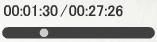 |
Displays the elapsed time and total time. Drag the slider to change the playback position. Click and hold the slider to fast forward or fast reverse. The playback byte position and content size may be displayed instead of the playback time depending on the server. |
 |
During playback, click to fast forward the video.
The speed increases each time you click the button. If you click and hold the button, the speed increases incrementally until you release the button. |
 |
Click to mute or activate the sound. |
 |
Drag the slider to adjust the sound volume. Click - or + to incrementally adjust the volume. |
  |
Click to change the video display to full-screen or standard size. |
 |
Click to select the audio channel mode from Left, Right, or Left + Right.*
*Some television broadcasts may contain secondary audio programming (SAP). VAIO Zone or Giga Pocket records the MAIN and SAP signals on left and right audio channels, respectively. You may select SAP if it is available.
When the audio mode of video recorded with two language channels is changed, click this button to cycle through main/sub audio channel --> Main audio channel --> Sub-audio channel. |
 |
Click to enable or disable the repeat mode. |
 |
Click to hide or display the film roll area. While the film roll area is displayed, you can jump to specific scenes by clicking the desired location on the film roll. |
Depending on your server and/or the type of file being played back, you may not be able to fast forward, fast reverse, or drag the slider to change the playback position.
Click
to display the film roll area and use it to find specific scenes in the video that you are watching. You can use the film roll area to perform the following.
- Click any position on the film roll to jump to that scene.
- Click
 or
or  to jump to the previous or next scene, respectively.
Click
again to hide the film roll area.
When video playback ends, the video list is automatically displayed.
To return to the video list during repeat playback of video or to return to the previous screen (the video list) during playback, click

or
.

 Playing Back Video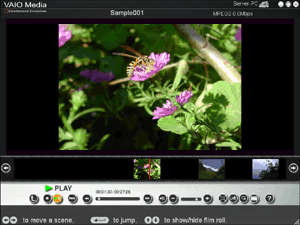

 Hint
Hint
