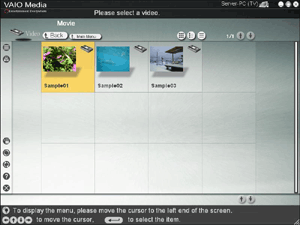
The list of video contained in the video cabinet or folder that you selected in the previous screen is displayed on this screen.
Select the video that you want to watch from the list.
To Select a Video
Select a video for viewing from the video list as follows.
- Click
 or
or  to scroll through the list of video on each screen.
- Clicking a video cabinet or folder displays the list of video cabinets or folders that it contains.
- Playback of the video starts when you click that video.
Searching for Video
You can narrow your search for videos that you want to watch by specifying details about them, such as their category. For details, refer to
Advanced Search.
Changing the List Display Method
You can change the display method of the video list with the following buttons.
 |
Display thumbnails. |
 |
Display item names with thumbnails. |
 |
Display item names only. |

Hint
You can sort the video in the list according to categories such as names or dates. Display the menu on the left edge of the screen with your mouse, keyboard, or remote control, and select Sort on the menu. Depending on the server to which you are connected, you may not be able to change the display order.
- Some servers may not display thumbnails.
- If a password protects the video that you selected, a password input screen appears. The video passwords are set through the Access Restriction function of Giga Pocket. For details, refer to Giga Pocket Help.
- You may not be able to play titles ending in an asterisk (*) on players that support networks other than VAIO Media.
Returning to the Previous Screen
You can return to the list of video cabinets or folders by clicking the Back button.
Hints
- If there are other servers that you would like to connect to, display the menu on the left edge of the screen with your mouse, keyboard, or remote control. Choose Select Server to display the "Please select a server" screen. You are now able to select a different server.
- You can return to the main menu by clicking Main Menu.
- If you display the menu on the left edge of the screen with your mouse, keyboard, or remote control and select Recent Playback on the menu, you can select the following:
- Back (Allows you to close the menu.)
- Recent Music (Allows you to play back the tracks in the last folder accessed.)
- Recent Photo (Allows you to display the folder containing the last photos accessed.)
- Recent Video (Allows you to play back the last video accessed.)
- Recent TV (Allows you to watch the last television channel accessed. This item may not be available in some countries or regions.)


 Selecting a Video