The tracks in the folder selected in the previous screen are listed in this screen. Select the track you want to listen from the list.
Playback of the track begins when you click the track in the list.
Click

or

to scroll through the list of tracks. To listen to another track while another is currently playing, simply click on another track in the folder.
You can control playback with the following buttons:
 |
Click to stop playback. |
 |
When playback is stopped, click to start playback. During playback, click to pause playback. When playback is paused, click to resume playback. |
 |
Click to restart track. Click again to return to the previous track. |
 |
Click to go to the next track. |
 |
During playback, click and hold to fast reverse. |
 |
During playback, displays the elapsed time, total time, title, and artist. Drag the slider to change the playback position. |
 |
During playback, click and hold to fast forward. |
 |
Click to mute or activate the sound. |
 |
Drag the slider to adjust the sound volume. Click - or + to incrementally adjust the volume. |
 |
Click to select a playback mode: repeat all, repeat one, shuffle, shuffle + repeat, or off. |
You can return to the folders by clicking the Back button.
Cover images registered with SonicStage or VAIO Zone are displayed. Those attached to tracks are not.

 Playing Back a Track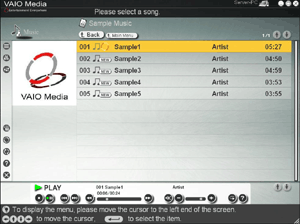

 Hints
Hints
