| Start a project |
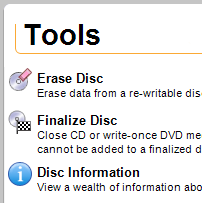
A project can be started from the
project guide by clicking on the project name. |
Some project links open a separate
application that you will use to complete the project. Some projects are
completed completely within the project launcher.
Projects completed within the project launcher are
collectively known as Roxio Home. Roxio Home projects typically follow
a basic three-step process:
- Select a project from the project list.
- Follow the instructions in the project window.
- Click on the action button.
|
- Saved projects can also be opened by choosing File
> Open Saved Project.
- You can set up and record more than one Roxio Home project
at a time with the following limitations:
- Two projects of the same type cannot be open
at the same time.
- Some versions of the program limit the number of projects
that can be open at the same time. You will be notified if you attempt
to exceed this limit.
- When you open a saved project, you will be notified if
any of the files in the project are missing. This can happen if a file
is moved or deleted after a project is saved. To restore a missing file,
add the file again from its new location.
|
To start a new project, do one of the following:
- Choose File > New Project,
then choose a project from one of the submenus.
- Click on a project tab in the project list. A list of
projects appears. Click on a project name to start a new project of
that type.
- Click on a project tab in the project list. If a project
guide is listed, click on it. Descriptions of all the projects on that
tab are listed in the project window. Click on one of these descriptions
to start a project of that type.
- Click on the New Project button to save
or cancel the current Roxio Home project and start a new project of
the same type.
|






